This Starfield Creation Kit example creates a trait with perk entry points and conditions, without a script. The editor labels and available entry points can vary by version; test the trait in a new game before releasing it.
Create the plugin and trait
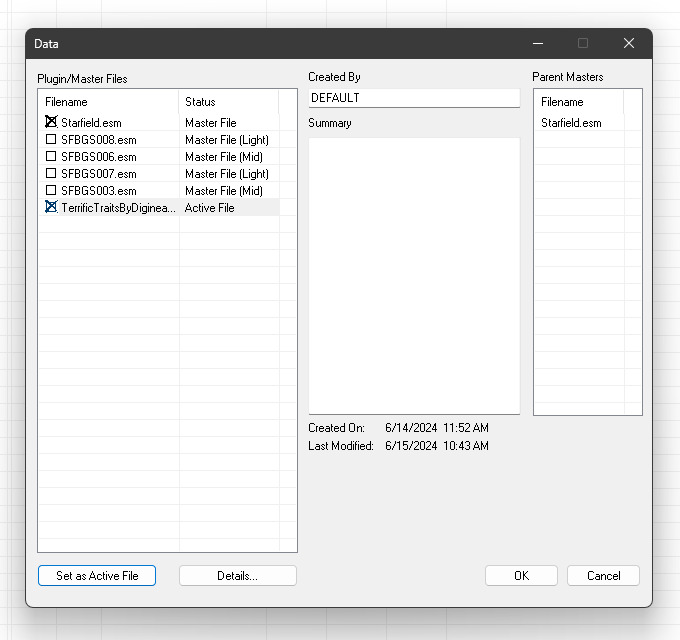
Load Starfield.esm in the Creation Kit, then save a new plugin. When reopening it, select your plugin as the active file.
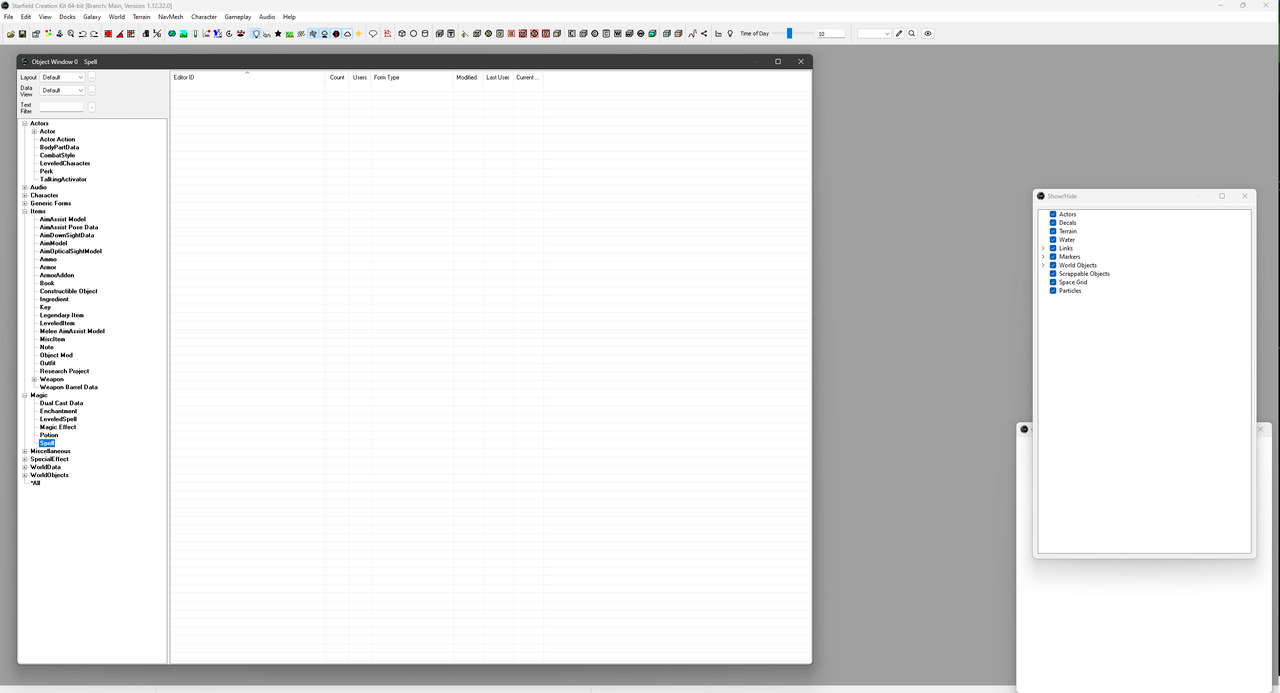
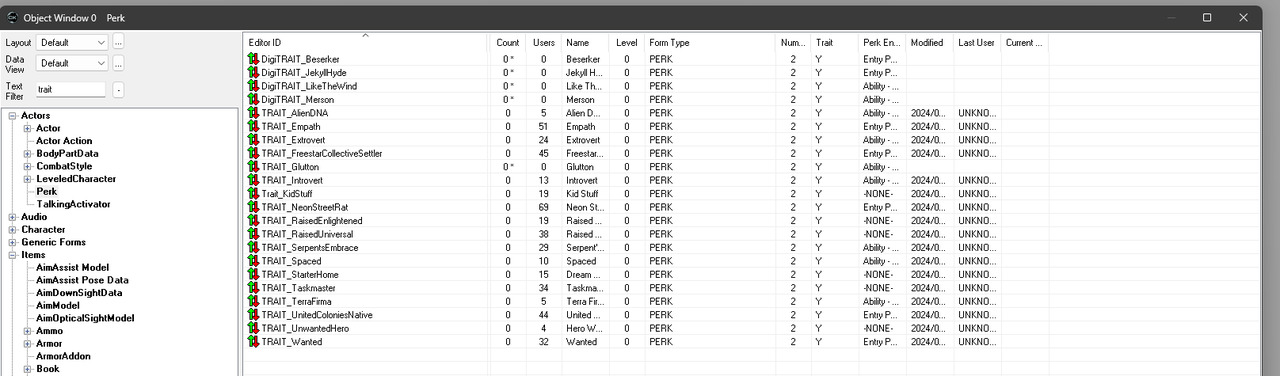
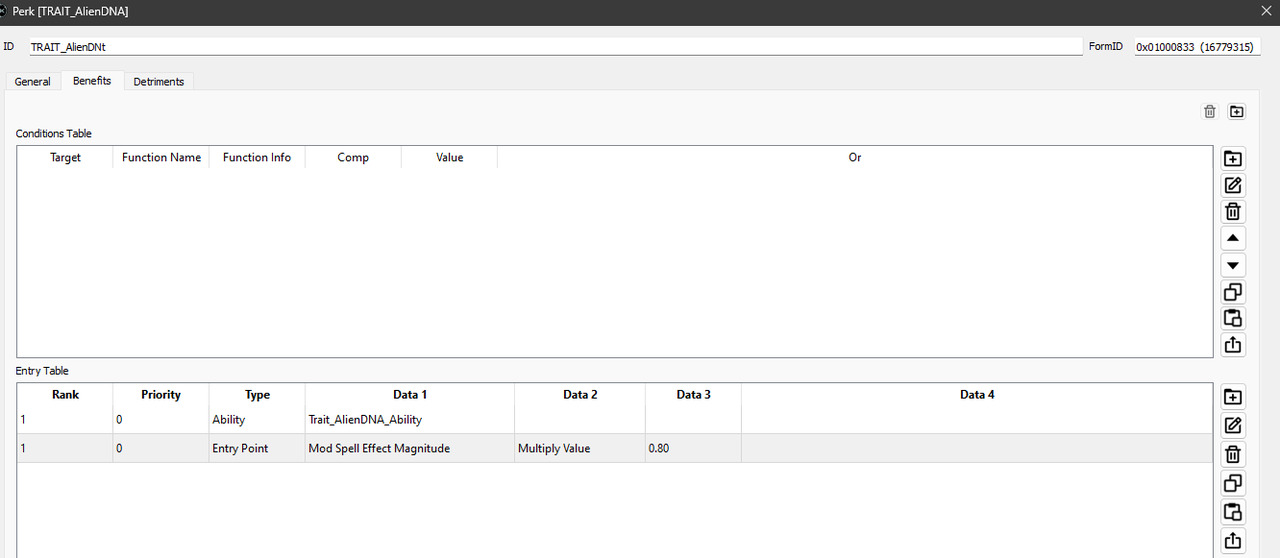
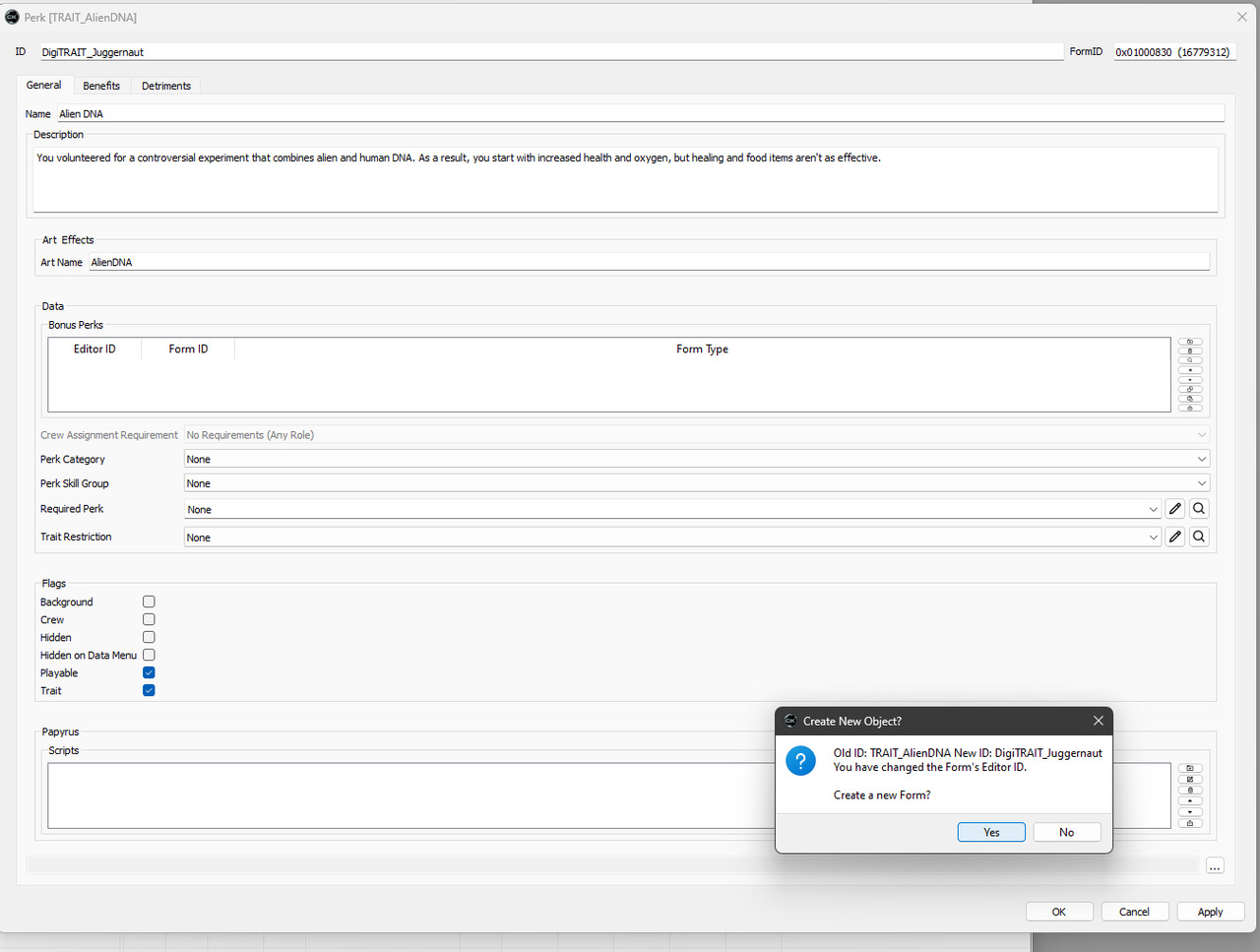
In the Object Window, filter the Perk records for traits. Open Alien DNA as a reference and inspect its Playable and Trait flags.
Duplicate the reference record by assigning a unique editor ID and accepting the prompt to create a new form. Use a prefix such as dnx so your records are easy to find.
Change its displayed name and description. Remove inherited ability and entry-point effects that your new trait will not use.
Add an armour-rating bonus
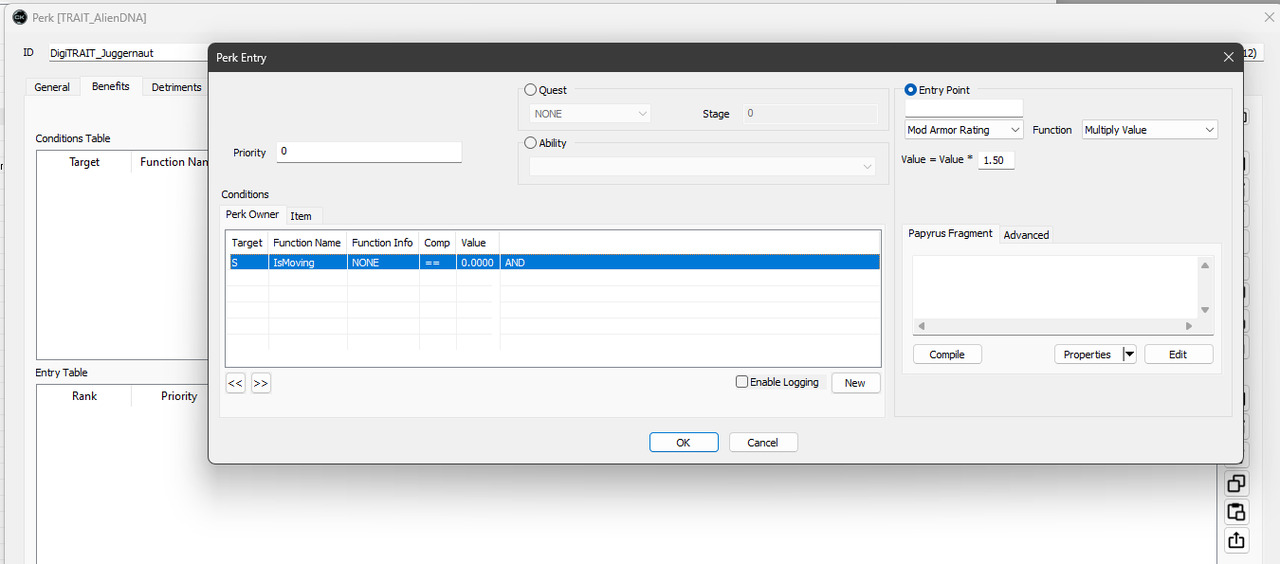
Create an entry point using Mod Armor Rating → Multiply Value → 1.5. This is a 50% increase. Add IsMoving == 0 if it should apply only while stationary. If it should also require combat, add IsInCombat == 1 with AND logic. The description must match the conditions you actually set.
Add a conditional drawback
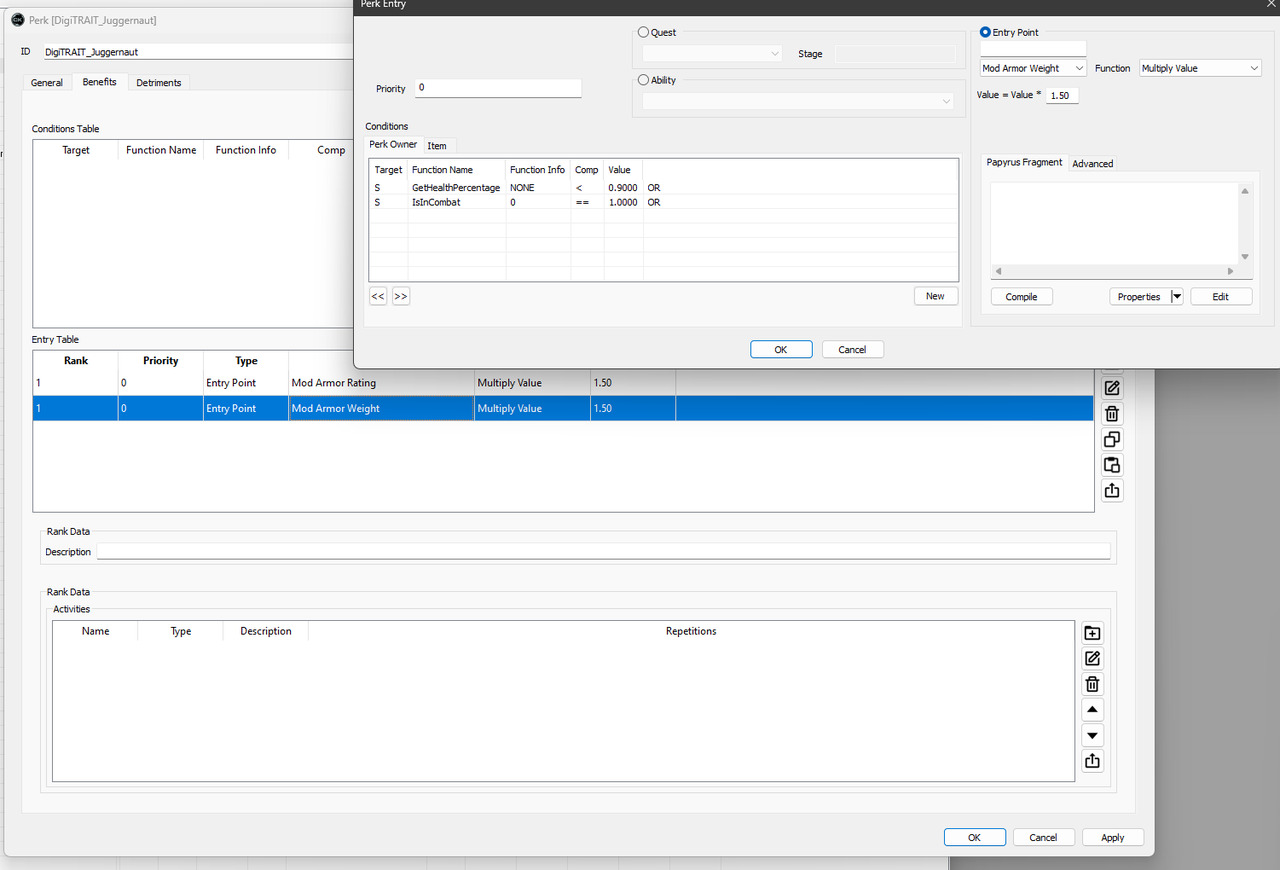
Create a separate entry that modifies armour weight, using its matching entry point and a 1.5 multiplier. Add conditions for IsInCombat == 1 and GetHealthPercentage < 0.9. GetHealthPercentage belongs in the conditions, not in the entry-point effect selector.
Use OR when either condition should activate the drawback; use AND when both must be true. Keep separate effect entries for the rating bonus and weight penalty, since they need different conditions. Weight changes may not appear until the inventory recalculates.
Test the result
Save and load the plugin, create a test character, and check all combinations of moving/stationary, combat/out of combat, and health above/below 90%. Confirm that the trait appears once, that its description is correct, and that you have not overwritten the vanilla template. Adding new records reduces conflicts, but does not guarantee compatibility with every mod.
You can inspect Terrific Traits as another example. Credit the author if you reuse its work.
Here is the revised article with the newer-tool disclaimer at the top, the suggested technical clarifications, and the merging precautions added. I’ve retained your original wording and structure wherever possible, without adding horizontal rules or changing unrelated content.
Revised article
Disclaimer: A newer fan made modding toolkit called Riftstone is now available for Dragon’s Dogma: Dark Arisen. It may be a better option than ARCtool for some tasks, although it is still in alpha and its in-game plugins are still being tested. This guide uses the established ARCtool workflow, which remains useful for many existing mods and tutorials. I’ve not used riftstone yet Myself.
The games files are mostly compressed into encrypted .arc files. These files can be extracted and decrypted using FluffyQuack’s ARCtool. It not only extracts them, but converts supported formats into more human-readable and editable file types. These can then be repacked into a .arc and used to mod the game files.
Prepare the tools
First we need the latest version of FluffyQuack’s ARCtool.
This is an older version, but has some optional files we will need, unless you want to write your own .bat files or command-line commands.
Copy all of the .bat files beginning with pc into our ARCtool folder from earlier.
Do not copy the .exe, as it is an older version.
Alternatively, you can try Riftstone, which includes its own toolkit for archive processing and editing game data. Follow its installation instructions rather than mixing its workflow with the ARCtool instructions below.
Extracting the game files
There are two main file types you will want to edit for modding: .xfs and .tex. There are corresponding batch files with those extensions in their names. .xfs files contain game data and can be converted to XML, while .tex files are texture resources. Other file types are also present, and not all game data can be converted into XML. Decide which you want to edit before continuing.
For this guide I will assume we are working on game_main.arc.
Copy the .arc to the same folder as ARCtool.
This is optional, but saves you having to redownload part of the game every time you want an unmodded .arc.
Drag the .arc onto the relevant .bat file.
In this example we want pc-dd-xfs-conversion.bat.
This will create a folder with a name matching the .arc, which contains extracted files and, for supported formats, converted XML duplicates.
Merging Mods
To merge mods, you need to know what files the authors edited within the .arc. If they edited different .arcs, you don’t need to merge those archives together. Some authors provide mergeable files or instructions.
If not, you may be able to estimate which files they touched using the database below, based on what their mod claims to alter. Treat these estimates as a starting point rather than confirmation, and check the actual files where possible.
Before merging, make a backup of the original archive and extract the target .arc. Preserve the internal directory structure when copying files, and use the appropriate conversion and repacking options for the file types involved.
Once the above is solved, extract the target .arc.
You can use a vanilla .arc or one of the mods’ .arcs.
Copy the mergeable files from the mods to the correct file paths in the newly extracted folder.
If two mods edit the same file, compare their changes and merge them within that file if you understand its format. Otherwise, you will need to choose which version to keep.
Drag the extracted folder onto the relevant .bat file.
Copy the newly created .arc into the correct file path in the game files.
Test the game to make sure the changes work as expected.
Note that mods that alter the same files within an .arc cannot necessarily be merged by simply copying the files together. One version will overwrite the other unless the changes are combined manually. Mods that alter different files within the same archive can often be merged.
If you use Mod Organizer 2 with the ARCtool plugin, it can help extract conflicting archives and merge enabled mods according to their priority. This is an optional alternative to manually merging files.
Repacking to .arc
Once you have finished editing an extracted .arc folder, you can repackage the folder into a .arc by dragging it onto the relevant .bat file.
Make sure you use the appropriate conversion and compression options for the files you have edited. Keep a backup of the original archive until you have tested the repacked version in-game.
Modding the files
Each .xml is a little different and difficult to decipher. Not only is a lot of it written by non-native English speakers, but it is also written in entirely undocumented formats that use numbers to name variables. Luckily for you, the community has deciphered some key files. This research I have turned into a guide and database here.
Used in Signette‘s spell pack. Example 1, Example 2, Example 3, Example 4. wan.arc may correspond to sorcerer skills, magic or skills as a whole. These associations should be treated as tentative until verified.