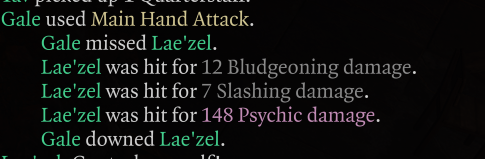
Choose how often your Wild Magic triggers and how Tides of Chaos affects it. Configure separate rules for cantrips, leveled spells, rituals, automatic spells, and spells granted by equipment or racial progression. The mod uses BG3’s native Wild Magic rolls and outcome groups and applies to characters with the Wild Magic passive.
Five cast categories with independent surge DCs, outside-combat toggles, and Tides settings.
Optional persistant modifer, so you can replicate pseudo random rolls. Like every time the wild magic roll fails, the DC is lowered by 1.
Set the base DC for each casting type seperately. so you could set rituals to -1 so they never get triggered, cantrips to 20 for 1/20, while having levled spells at 11 for 50% chance.
Optional chance for a casting type to replenish tides of chaos after it is exhausted. This is displayed in the ombat log as a wild magic surge so you can view the roll. But it isn’t treated as an actual surge. just a bit of a hacky workaround to have it displayed in the ingame log.
A passive added to wild mages, whos tooltips displays current DCs for each of the casting types, including any active modifiers.
Toggle whether long rests reset the persistent counter
Respects the game’s story suppression of Wild Magic. You can toggle this off, but i don’t reccomend it. it can allow surges to occur in cutscenes or for scripted events applying magic to the character to potentially be treated as spellcasts and roll the wild magic check.
Fixes a vanilla bug where rapidly casting spells would cause wild magic check to be performed only on the last spell cast, instead of every spell.
MCM settings, JSON configuration, and Script Extender console commands.
Multiplayer support (not tested, but theoretically works): The host’s settings control multiplayer; display values are synchronized to clients.
Install or update
1. Extract this ZIP to a temporary folder.
2. Install Script Extender v29 or newer. Install MCM separately if you want its settings interface.
3. In BG3 Mod Manager, import WackyWildMagicConfigurable.pak, then move Wacky Wild Magic: Configurable to the active list.
4. Disable older Wacky Wild Magic variants. This mod overrides the WildMagic passive; place it after compatible mods that also override that passive. Other Wild Magic overhauls may conflict.
5. Export the load order to the game, then launch BG3 and load your save.
You can install it manually or with Vortex, but neither is reccomended.
It should be safe to use updated version on existing saves. But not with saves using version 1 or 2 of the mod. only future versions of the configurable mod.
Compatibility
It should be compatible with mods that edit the wildmagic spell list and most mods that alter tides of chaos. Anything that directly edits how wild magic rolls are triggered or calculated is unlikely to be compatible and may even cause crashes or savebreaking bugs. Should also be compatible with existing saves and multiplayer.
Configure
With MCM, open mod configuration menu from the ingame main menu. MCM values take precedence over JSON settings when available.
Without MCM, create the folder below and copy settings.example.json into it as settings.json (found in the .zip):
%LOCALAPPDATA%\Larian Studios\Baldur’s Gate 3\Script Extender\WackyWildMagicConfigurable\settings.json
Edit the file, then reload your save or run !wwmc reload in the Script Extender server console. The example file includes every supported setting ID.
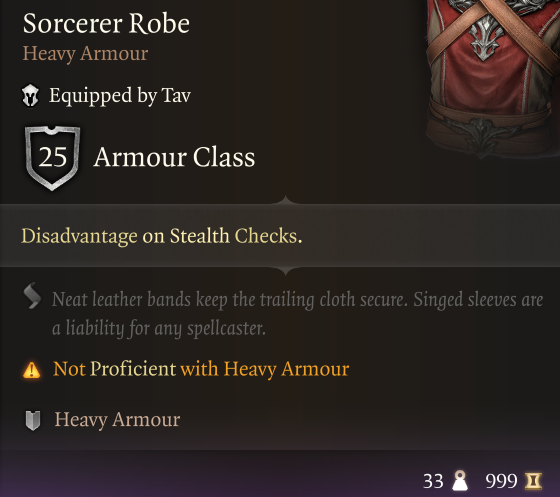
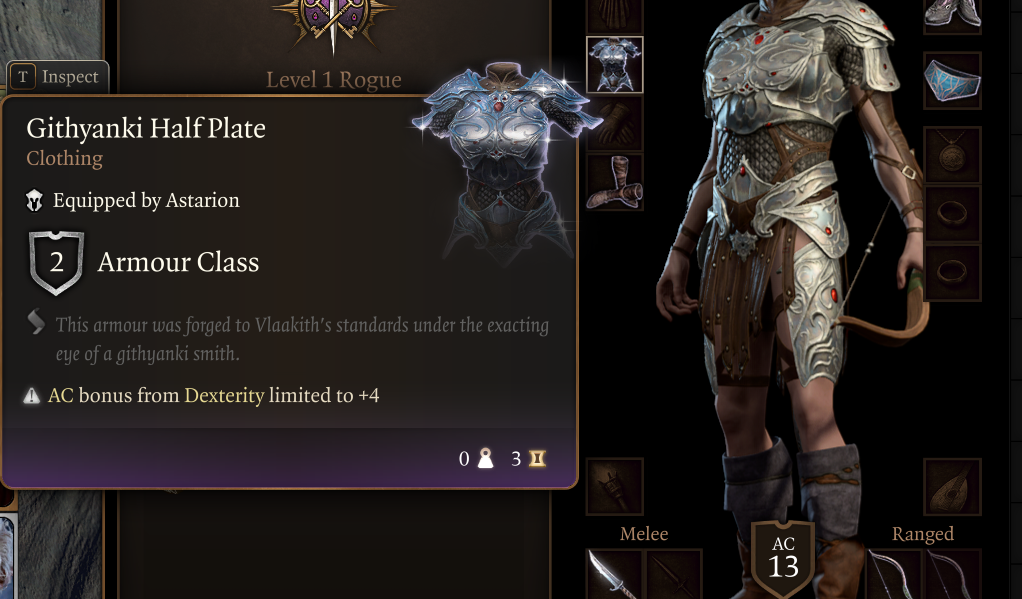
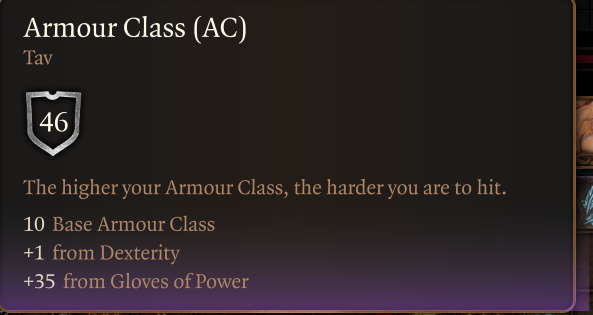
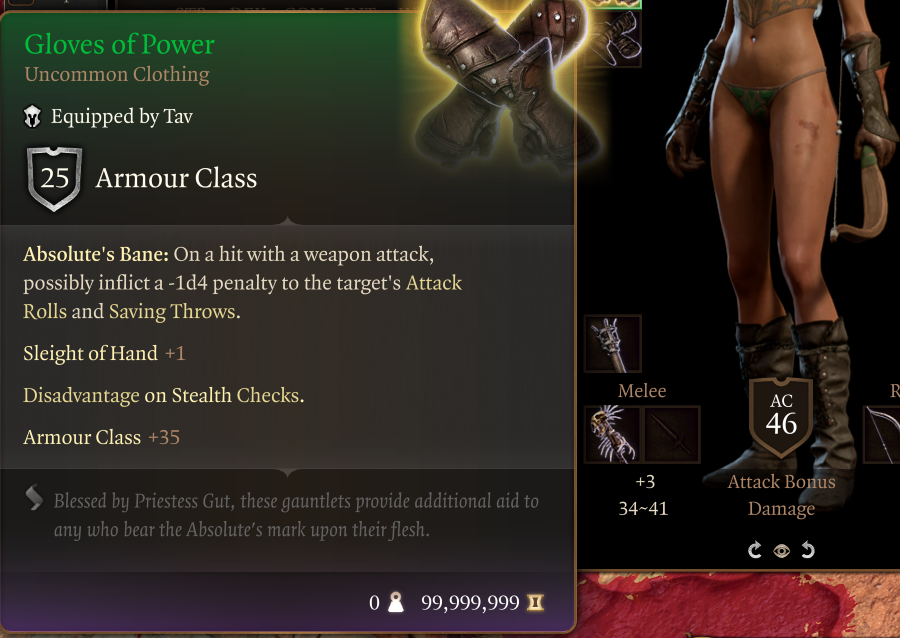
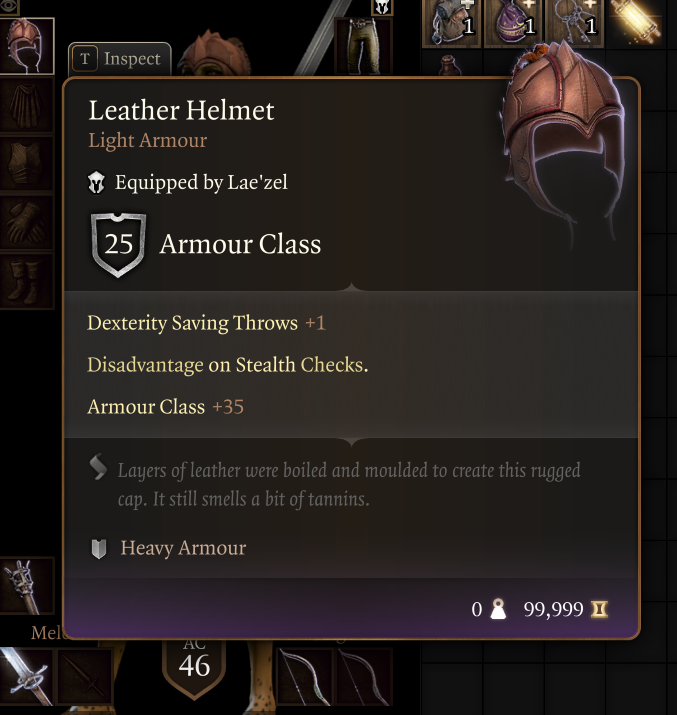
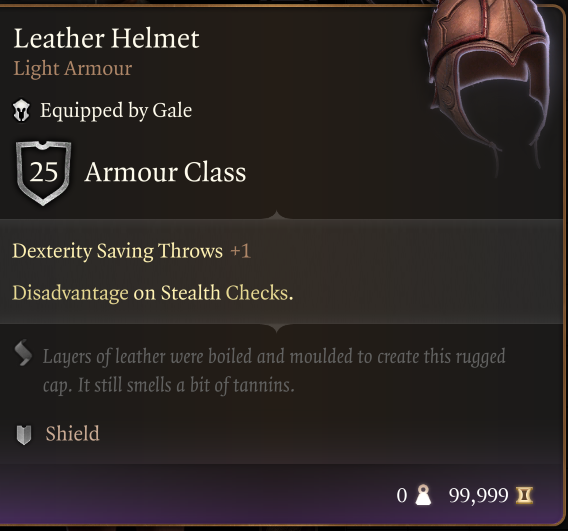
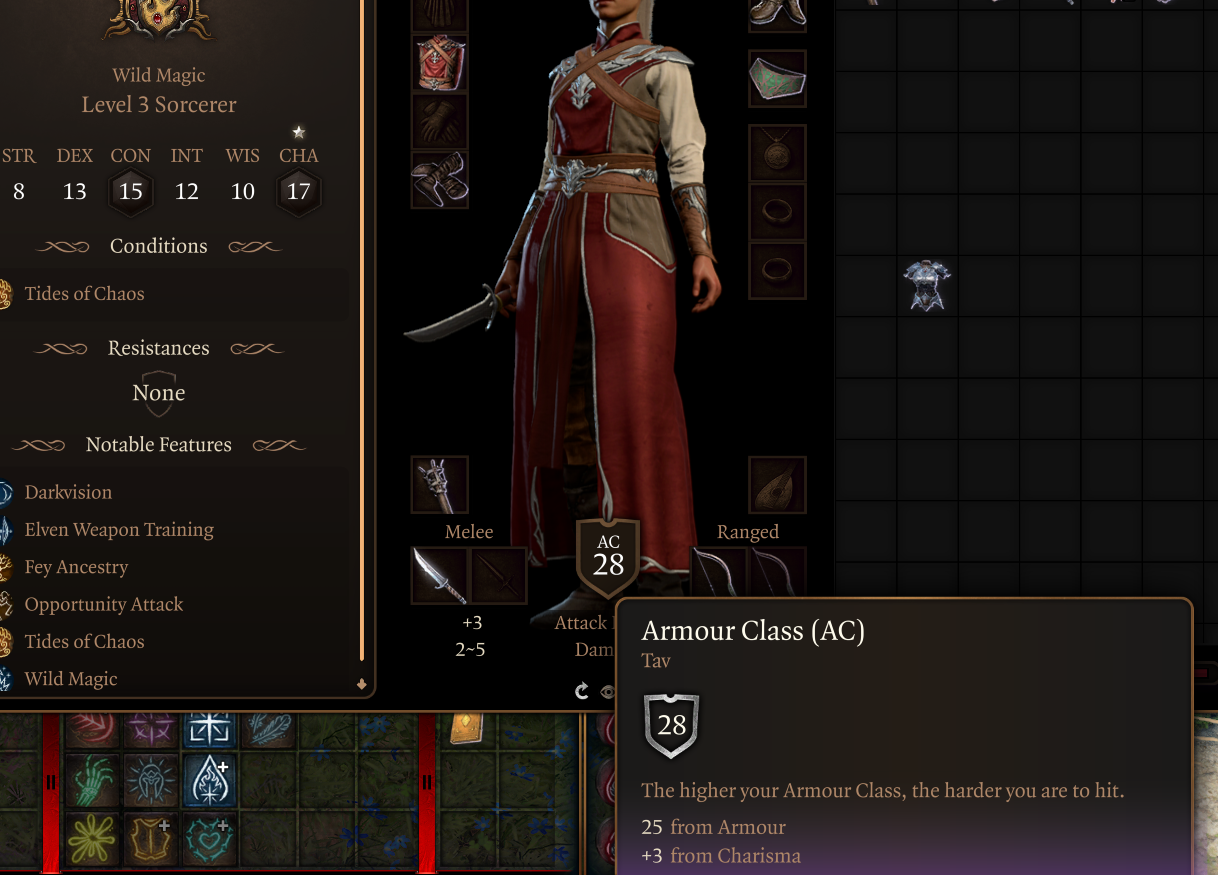
Edit armor stats, like AC, weight, and even the stealth debuff on armor.
Features
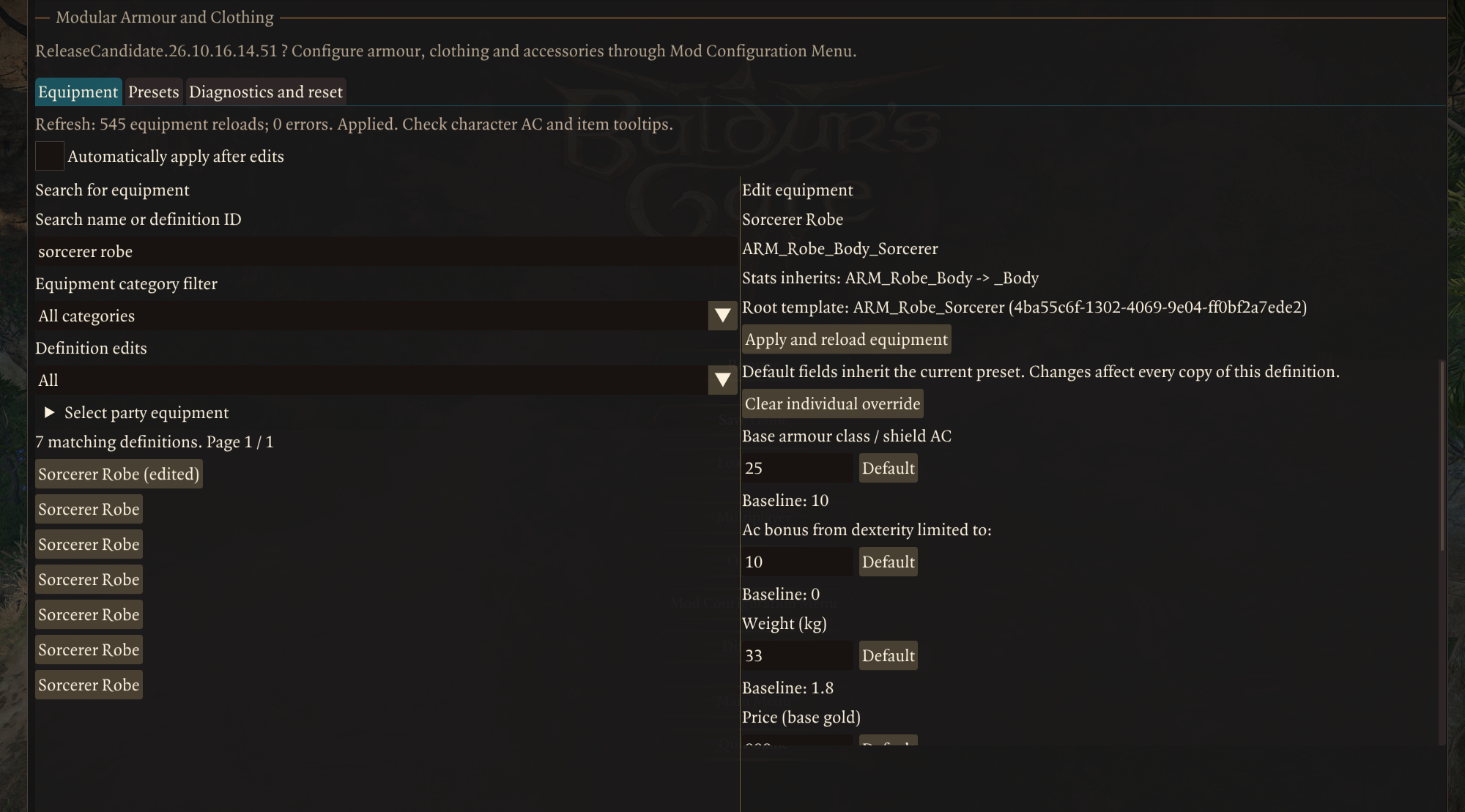
Edit base armour class
Choose which ability is used for AC. Want armour that uses Intelligence instead of Dexterity? Go for it.
Not the UI doesn’t update to match the changed ability, but the ac is still applied
Change the ability modifier cap, including removing the cap. Want heavy armor to allow 5 ac from dex? or clothing to restrict ac bonus from stats to 1? Me neither, but you can do that if you wanted.
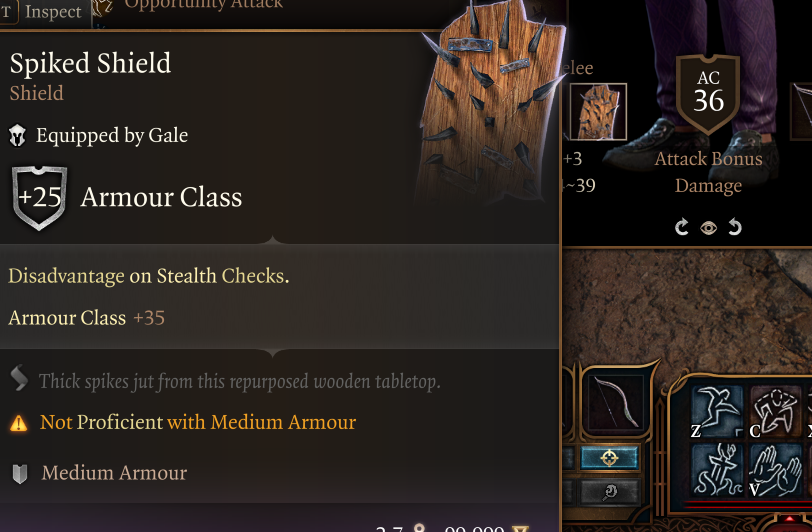
Change required proficiency independently of armour type. Your heavy armour doesn’t have to require heavy armour proficiency.
Change armour type. This changes the tooltip classification; whether it affects particular feats or spells still needs testing.
Add or remove disadvantage on stealth checks.
Edit prices and weights. Note that merchants use a multiplier of base value, adjusted by your charisma and relationship to determine item value. This mod only edits base value.
Add or remove equipment tags. Most don’t seem to do anything noticeable, but they’re included for other mods that might use them.
Shareable and saveable presets. Save your rebalanced equipment as a JSON file which you can manually upload and/or share with others.
The preset system includes a “set to default” system. You can choose which preset counts as your default. It uses vanilla initially. When a save loads with the mod installed for the first time, it also saves the loaded definitions as a protected Modded defaults preset.
Edit entire categories of equipment or individual definitions. Includes armour, shields, helmets, gloves and boots.
You cannot edit separate equipment instances. So every item using the same definition will share the same stats, including equipment used by NPCs. If you say give the base robe definition 15 AC, all robes will inherit that change. If you only edit the deifniton for Galse unique robe, it will only affect that robe. But if you had a copy of Gales robe somehow, both would have the same stats.
rings, amulets and cloaks cloaks etc.. arn’t really intended to have some of these changes and can behave oddly.
Boots, helmets, shields and gloves use the “Additional equipped AC bonus”, instead of the base AC field and cannot benefit from ability based ac bonuses, like armor does.
Camp clothes, cloaks, jewlery and underwear are not covered by this mod, as the engine doesn’t treat them the same way as armor.
Mod Configuration Menu (MCM), version 1.41 or later. Follow MCM’s installation instructions and install any dependencies it requires.
BG3 Mod Manager is recommended for installation and managing the load order. Dependencies are downloaded separately. However theoretically Vortex or manual installs should work fine.
Import this release ZIP into BG3 Mod Manager, or extract ModularArmor.pak directly into %LOCALAPPDATA%\Larian Studios\Baldur’s Gate 3\Mods.
Keep the .pak directly in the Mods folder.
If updating, replace the previous package for this mod.
Activate Modular Armor and place it after MCM in your active load order. Save and export the load order to the game.
Launch the game and load a save. Open MCM with Insert, or through the Escape menu, then select this mod’s menu.
Edit your equipment and click Apply and reload equipment, or enable automatic apply.
You may need to unequip and re-equip to get equipment or the UI to update some changes.
Compatibility notes
For equipment added or edited by other mods, activate Modded defaults to use their loaded stats as your starting point. You can also select it as your default preset.
Profiles: committed equipment settings, the active preset and the default preset are remembered per save file. MCM profiles store the automatic-apply preference.
Multiplayer: In theory this should work in multiplayer using the host’s settings. But multiplayer hasn’t been tested.
Engine Restrictions
If the AC from equipped armor is lower than your unarmored AC, the game will use your unarmored AC. This is mostly a good thing, unless you wanted to use armor to debuff a wearers AC.
Some equipment was obviously never intended to have certain stats or tags, so expect things to behave weirdly if you go too crazy.
Changing armour type doesn’t change the item’s model or equipment slot. You cannot turn a breastplate into an equippable shield this way. However some invalid combinations can cause the model to become invisible or otherwise bug out.
Changing camp clothing doesn’t make its cosmetic slot apply combat stats.
When you choose an ability other than Dexterity for AC, the game’s tooltip may stop displaying the ability modifier cap. The AC bonus from the ability is still reflected in other parts of the UI.
Most equipment tags don’t seem to do anything noticeable and likely weren’t implemented for normal equipment. They’re still included for other mod developers or vanilla edge cases I’m unaware of.
Presets:
“Active preset” and “Default preset” are remembered per save file. Save the game to keep your choices.
Create a named preset in the mod’s Presets menu.
The sharer navigates to the following folder in their file browser: %LOCALAPPDATA%\Larian Studios\Baldur’s Gate 3\Script Extender\ModularArmor\presets\saved
Find the preset .json file they want to share and send it to the other player. Email and Discord are common methods.
The receiving player places the file in their saved folder at the same path.
The receiving player loads their save game and opens the mod menu.
Select the preset from the list and click Set selected as current preset.
Armour and weapon presets use separate formats. Put armour presets in the armour mod’s folder.
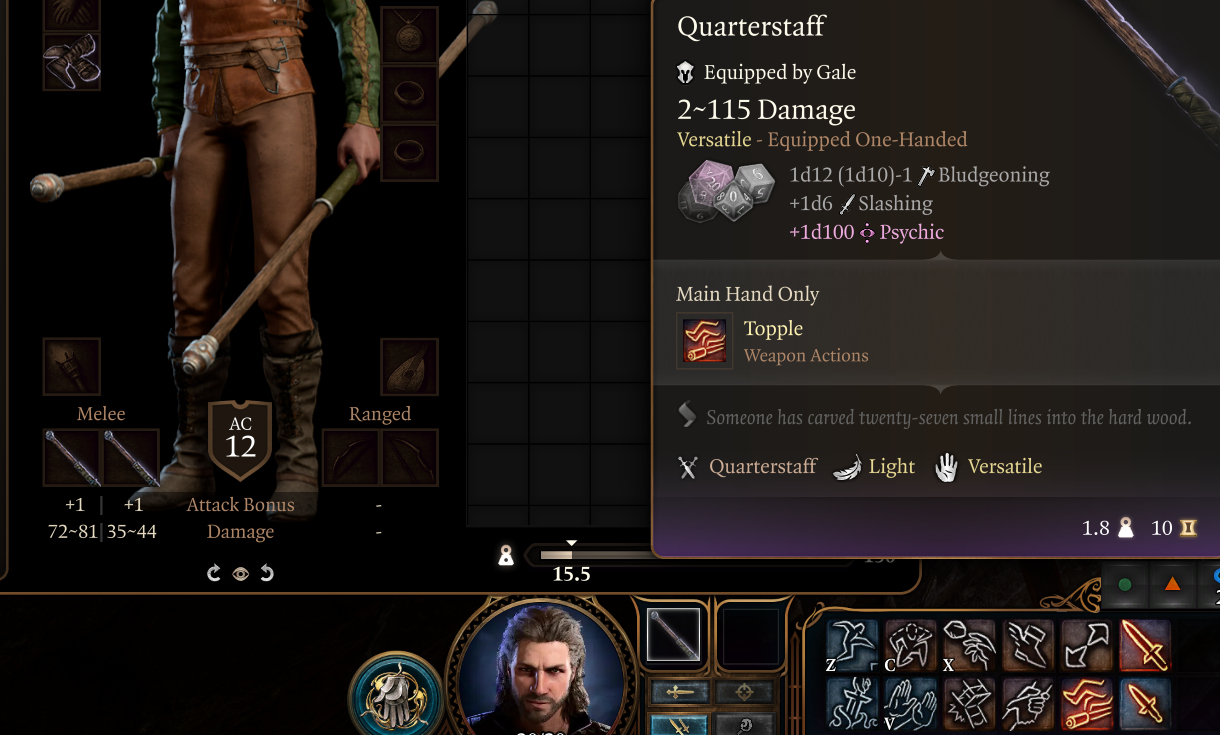
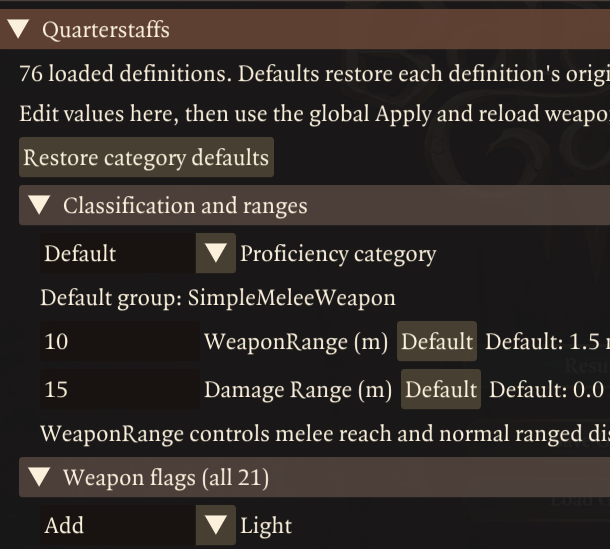
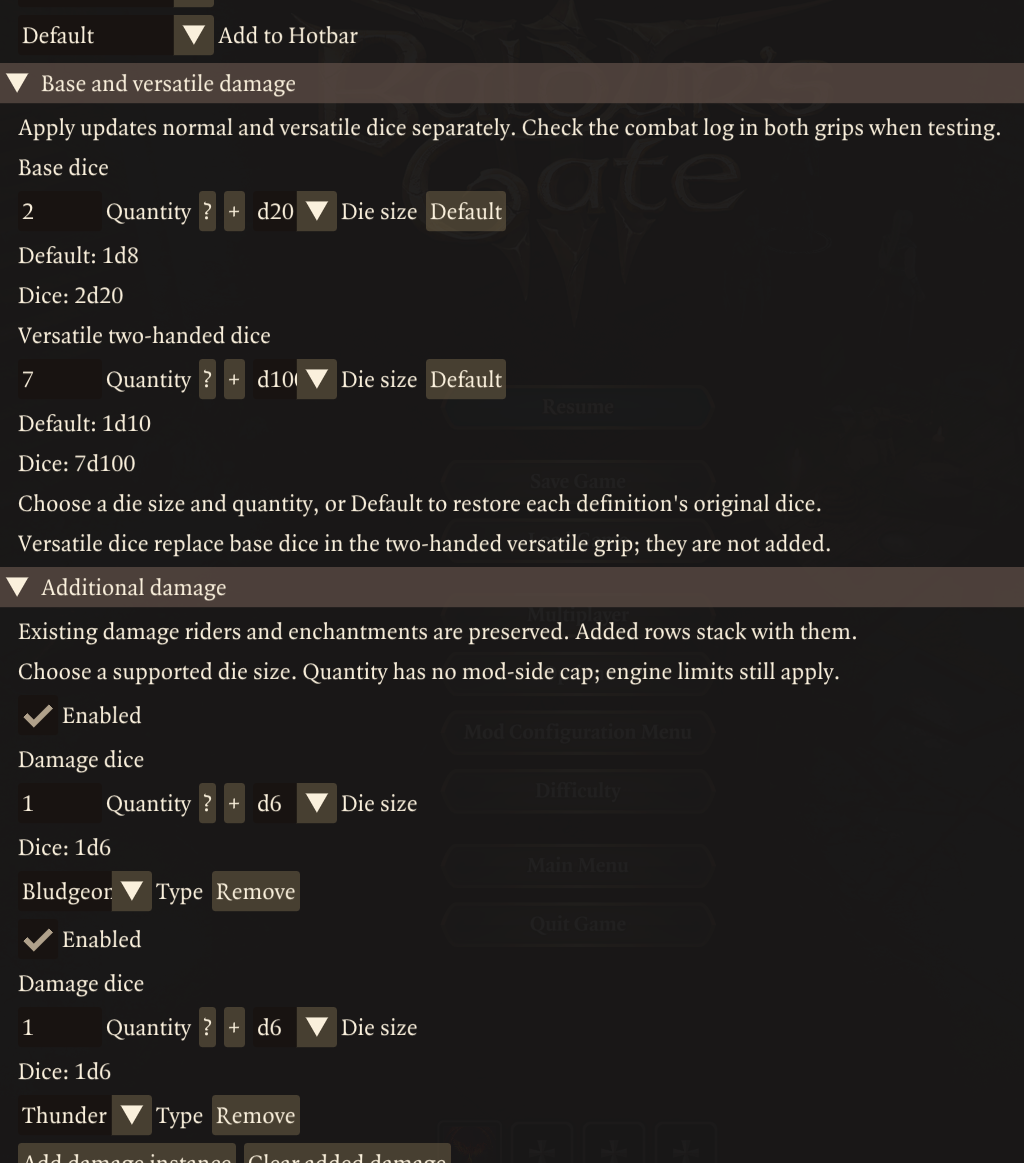
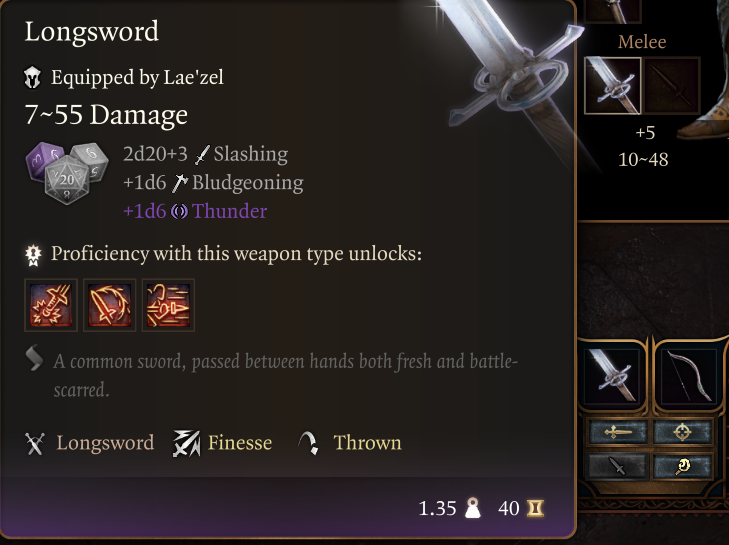
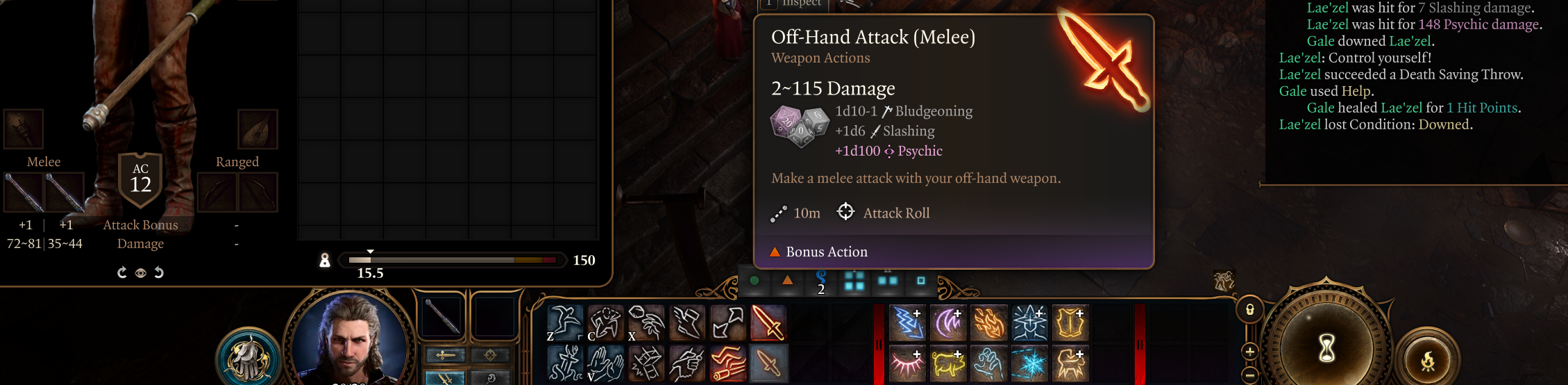
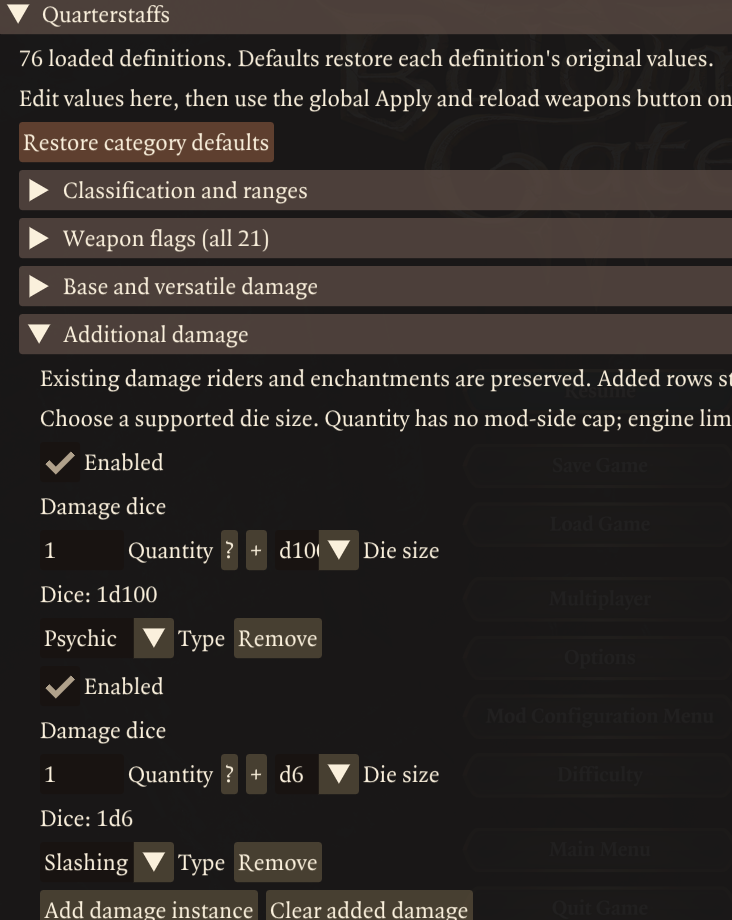
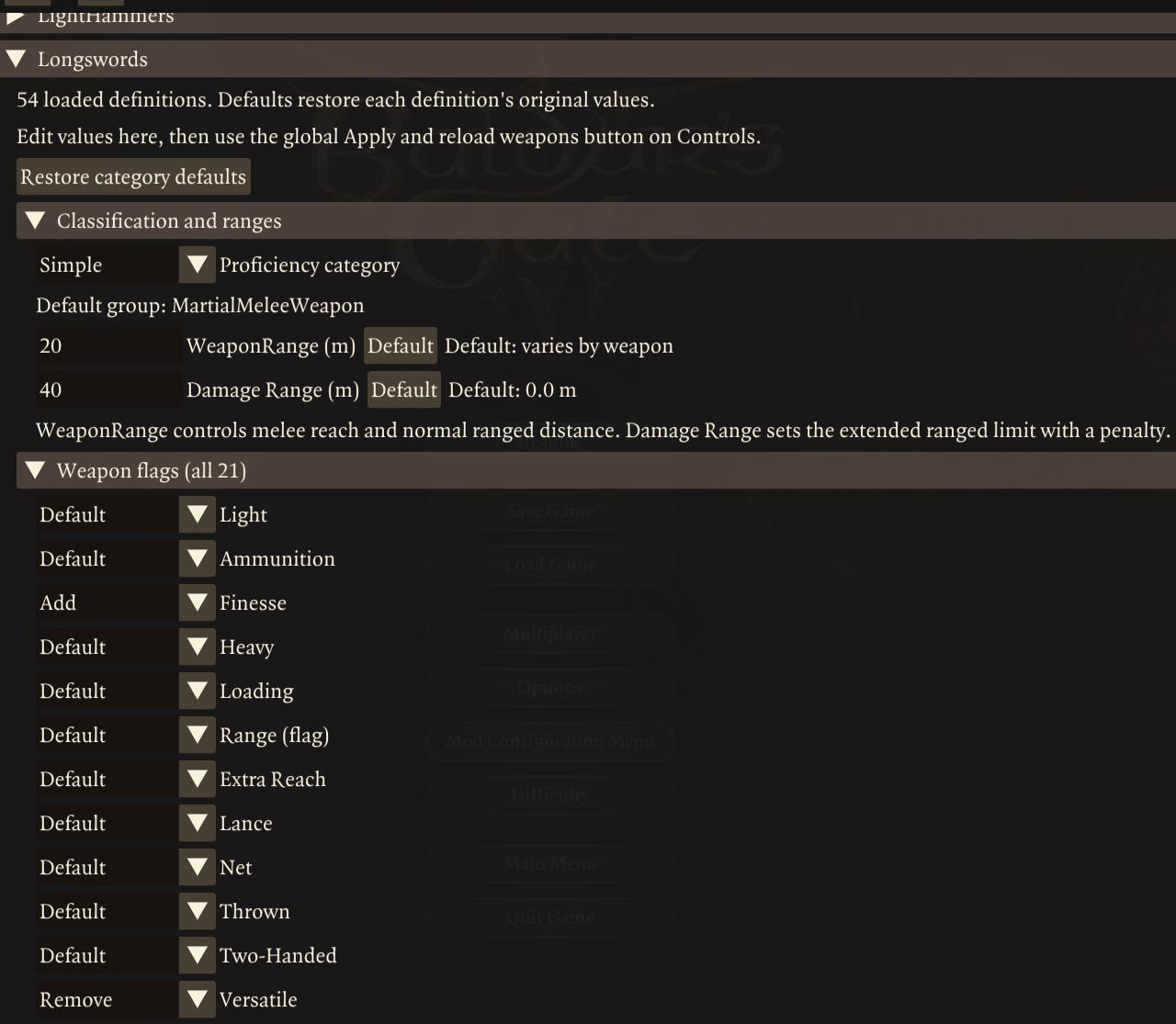
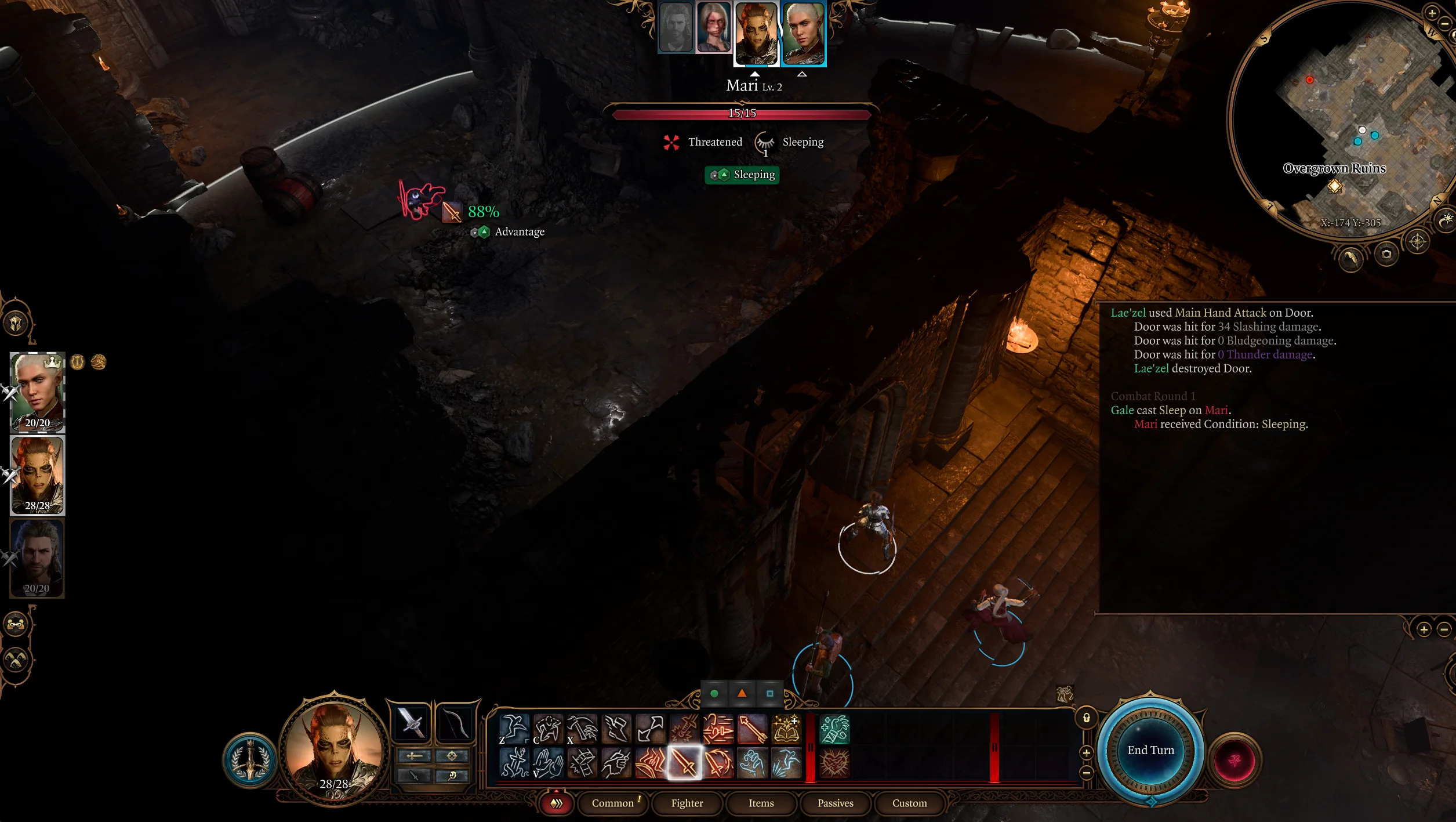
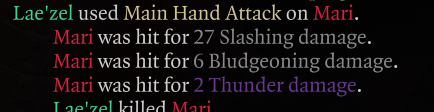
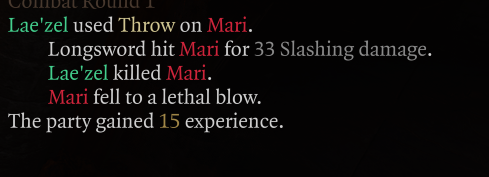
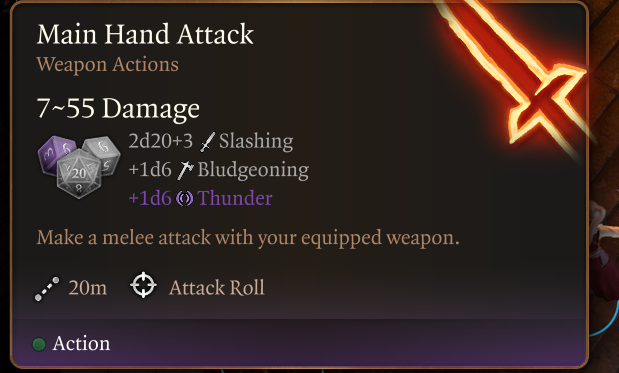
Modular Weapons lets you change weapon properties and stats. Finally your longswords can be finesse weapons, your flails have extended reach and your poop knives deal poison damage or just make your greatclubs throwable and dual wieldable with slashing and psychic damage because why not?
Dual wield staves with bonus slash and acid damage, which have a range of 30, worth over 9k gold and 30kg https://youtu.be/EKLo765Qdz0
Features
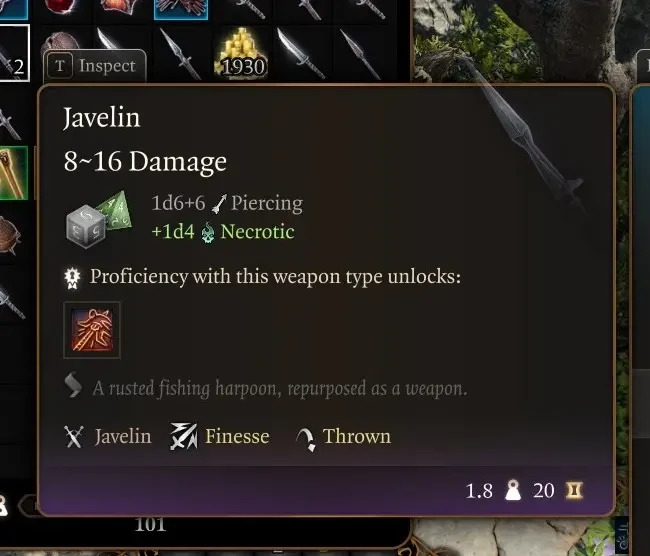
Edit base damage dice size and quantity, including versatile damage. Engine prevents changing base damage type or arbitrary dice sizes
Edit, add or remove Damage riders, include type. A weapon can hold up to 32, not that id reccomend it.
Add or remove properties like finesse, light and thrown. Includes all engine properties, though most are unused in vanilla and don’t see to do antyhing.
Yes this means you can make greatclubs throwing weapons, longs swords dual wiedlable and daggers versatile if you wanted to for soem reason. The animations might look odd with soem combinations but so far everything ive tried works.
Switch between martial or simple proficiency
Change attack range for mele and ranged weapons. Ranged weapons can fire outside their base range with disadvantage, you can edit this range seperately. Weapon abilities mostly inherit this range too.
Edit prices and weights
Shareable and saveable presets. Save your rebalanced weapons as a text file which you can manually upload and/or share with others.
The preset system includes a “set to default” system. you can choose which preset counts as default values. it uses vanilla as a default. When a save loads with the mod installed for the first time it also saves loaded deifnitons as a preset you cna use as a default for modded weapon definitons.
Edit entire categories of weapons or individual weapon definitons. For example generic longswords and gith longswords can have totally different stats.
You cannot edit seperate weapon instances. So all egenric longswords will share the same stats an all gith longswords will share the same stats
Mod Configuration Menu (MCM), version 1.41 or later. Follow MCM’s installation instructions and install any dependencies it requires.
BG3 Mod Manager is recommended for installation and managing the load order. Dependencies are downloaded separately. However theoretically vortex or manual installs should work fine.
Installation
Close Baldur’s Gate 3. Install Script Extender and MCM first.
Import this release ZIP into BG3 Mod Manager, or extract ModularWeapons.pak directly into %LOCALAPPDATA%\Larian Studios\Baldur’s Gate 3\Mods
Keep the .pak directly in the Mods folder.
If updating, remove the previous WeaponTagsPOC.pak
Activate Modular Weapons and place it after MCM in your active load order. Save and export the load order to the game.
Launch the game and load a save. Open MCM with Insert, or through the Escape menu, then select this mods menu.
You may need to unequip and re-equip to get weapons or ui to update some changes. But most things update immedately after applying changes in the mod menu.
Closing MCM keeps drafts for the current session; loading a save or switching MCM profiles discards unapplied drafts.
Compatibility notes
For weapons added by mods and/or weapons edited by mods, be sure to set the modded preset as your default preset. otherwise clicking “reset to defaults” on a weapon entry might set it to vanilla stats, instead of the stats from the other mod.
Profiles: settings belong to the selected MCM profile and can affect multiple saves using that profile.
Multiplayer: In theory this should work in multiplayer, using the hosts settings. But i havn’t tested it.
Engine Restrictions
Some weapons were obviously never intended to have certain stats or tags etc.. So expects things to behave weirdly if you go too crazy. That said, during my testing, the engine has been pretty good at handling modifed weapons.
Some tags dont seem to do anything noticeable and likely wern’t implmented by larian (Lance, Heavy, Loading etc…) I still included them for compatibility with mods that do implment them or vanilla edgcases im unaware of.
Presets:
“Active preset” and “Default preset” is remembered per save file.
Presets can be easily shared between players or backed up,
The sharer navigates to the following folder in their file browser: %LOCALAPPDATA%\Larian Studios\Baldur’s Gate 3\Script Extender\ModularWeapons\presets\saved
Find the preset .json file they want to share and send it to the other player (email and discord are common methods).
The receiving player, simply places the file in their “saved” folder at the same path.
Receving player loads their save game and opens the mod menu
Select the preset from the list and then click “Set selected as current preset”.
4 seperate files that can be used together or on their own in any combination. Each sets it’s assigned attribute requiremnts for weapons to 0. The spell file of course setting spell requirments to 0.
Navigate to to the folder containing “Verho.exe” in the games files (make sure the game is not running).
Extract the contents of the BepInEx .zip into the same folder.
Open “BepInEx/config/BepInEx.cfg” with a plain text editor that supports idnention like windows notepad, notepad++ or a programming IDE like visual studio code.
In that text file, under “[Chainloader]”, set HideManagerGameObject = true
you may need to boot the game after installing Bepinex for the config to generate. You can also create the file manually with just those two lines.
extract your desired No requirements .zip to the same folder as the game exe, choosing merge or replace files when prompted.
repeat step 5 for each no requirments .zip you want.
Uninstall
Simply delete the mod from the “BepInEx/plugins” folder. Your stats will revert to defaults the enxt time you boot the game.
If you currently have a weapon equiped you don’t meet requiremnts for minor bugs cna occur. so you should unequip your weapons and save before uninstalling.
This is a fully featured player home mod for Skyrim Special Edition and Anniversary (it probably works in oldrim and Enderal too, but i havn’t tested that). It’s a magic themed portable home, with everything the hoarding mage needs.
The Bedroom
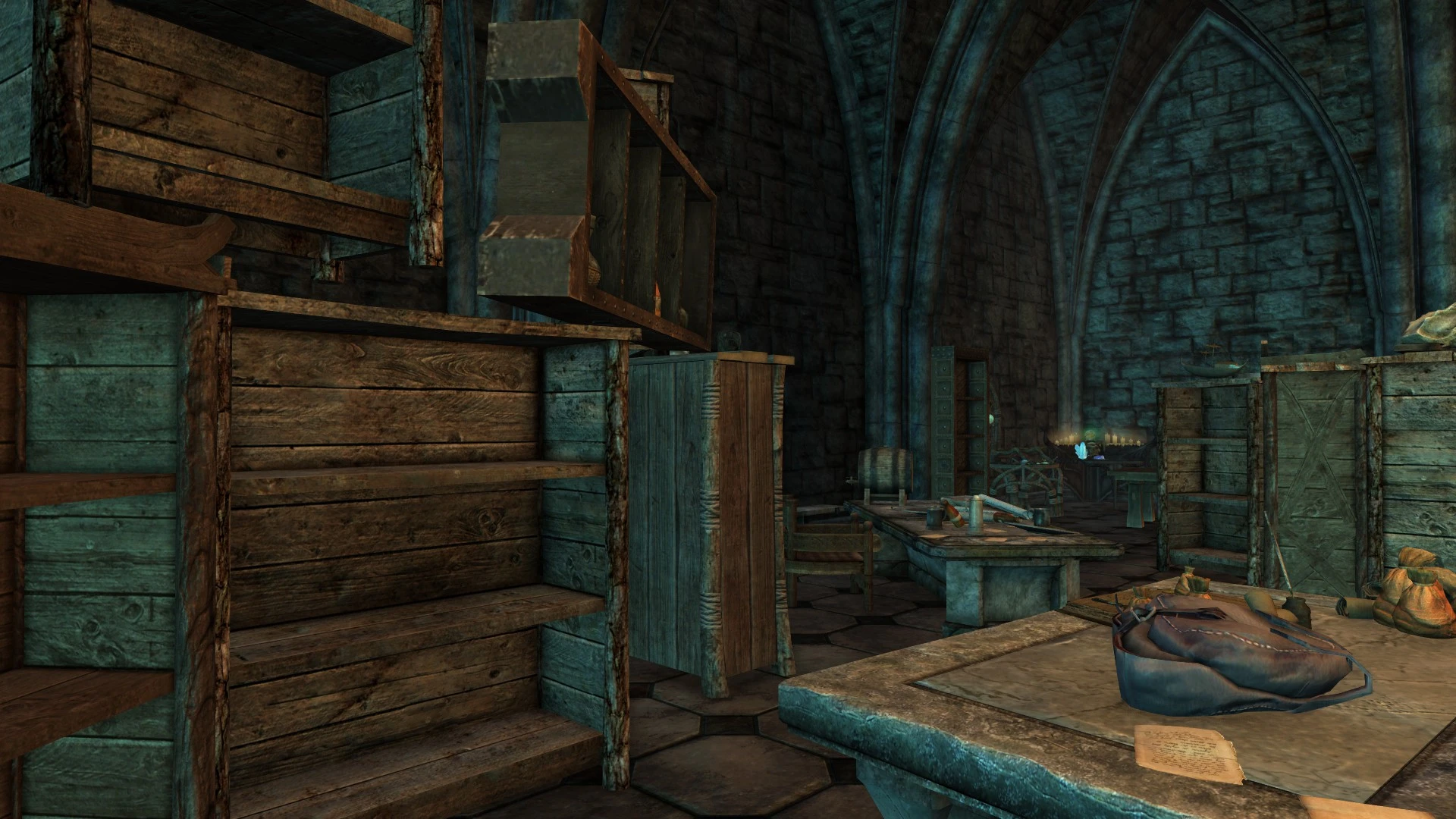
Contains haphazard arrays of the bookshelves.
A makeshift bedroom, clearly designed by a knowledge hungry drunkard.
Misc maps and documents strewn about the tables and some animated bookshelves and other surprises littered about to give the place gravitas.
At then end of the room are a series of teleporting doors, who gain more locations as your progress in the relevant factions.
In the main study area you have all the magical workbenches you could want, even a staff making altar.
The Forge
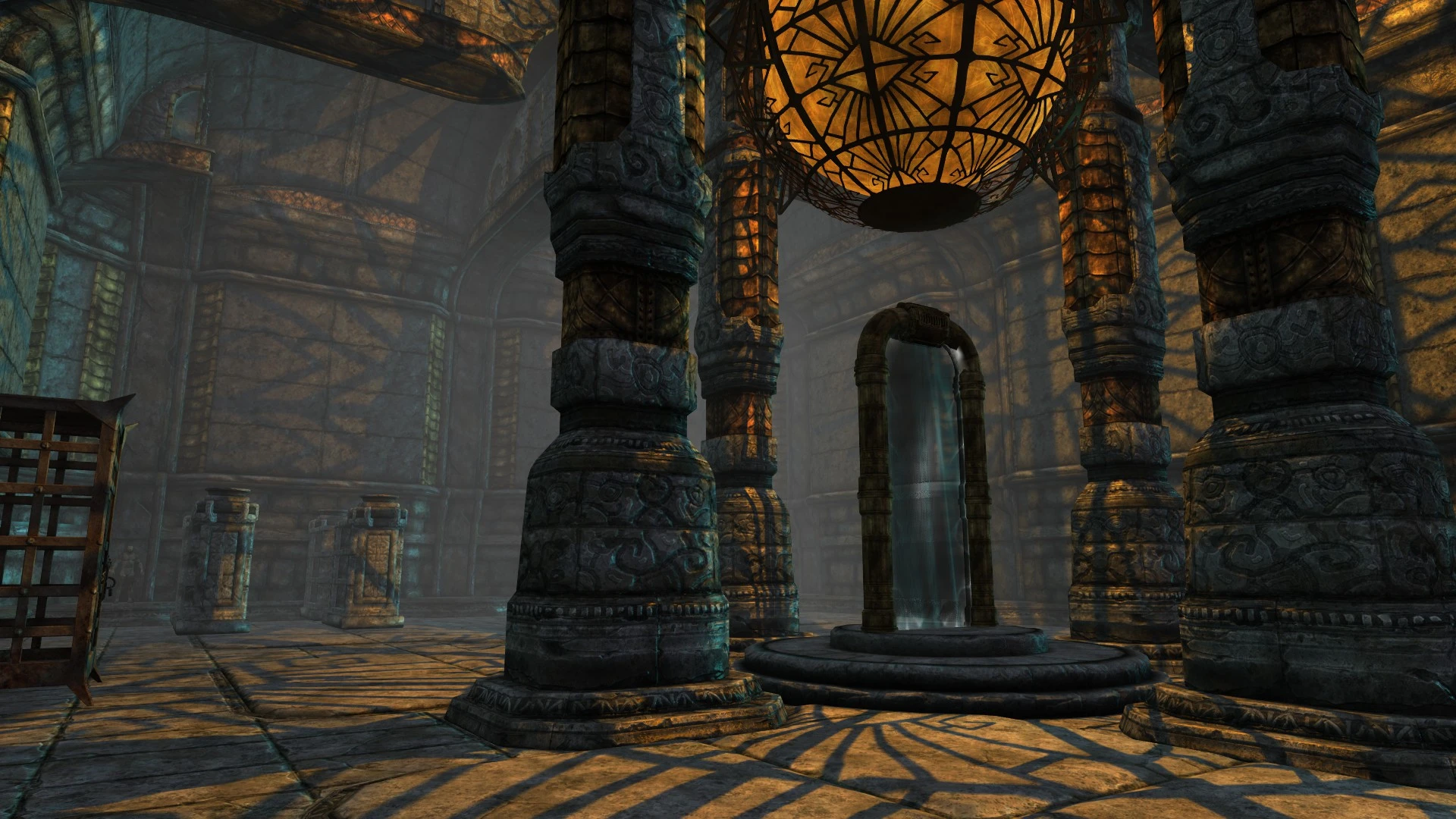
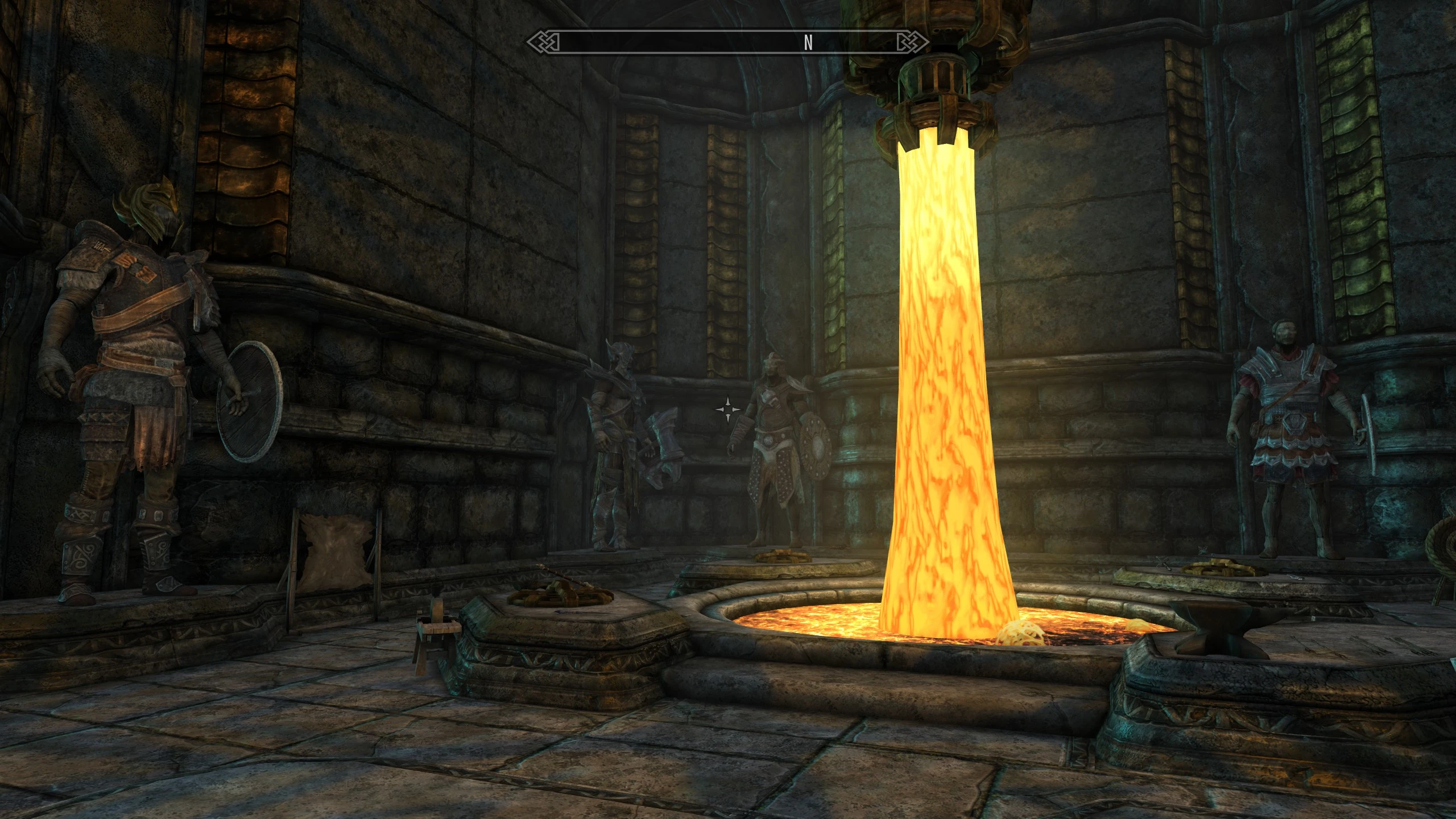
The Forge is Dwemer themed, complete with an asthetic contraption feeding lava into your smelter and forge. The workbenches are similarly placed asthetically, but still very near eachother for convenience.
Some equipment is placed around the area as a display.
Unussally large manequins are placed around the circumference of the room, ready to show of your most prized peices.
In the centre of the room is a Dwemer sun providing a nice shadow casting light across the room.
Near that is your infinetly respawning Dummy. Feel free to test your newly made equipment on them and don’t fear their death. A single button push and a new dummy is spawned.
At the end of the room is a full set of standing stones for your convenience. If your going to test a new build you should have access to everything you need.
The Nexus
The nexus joins these two rooms with magical dome, themed after the interior of a soulgem.
It has a variety of plants providing alchemy ingredients.
There is also 4 rows of manequins and weapon racks to display your arsenal.
Additional Features
The home is easily accessed from anywhere using a scroll automatically added to your inventory upon starting the game or loading a save. Simply activate it and after a short animation you’l be whisked away safely to your new home.
Using the scroll again while in the pocket dimension will teleport you back to where you were when using the scroll to enter.
While inside your pocket study you can fast travel as normal, because i like convenience.
A networked storage system is in place. A single chest exists in each room which all access the same shared inventory, again for your convenience.
Disposable Corpses – The Dummies corpses can pile up. By default the game wont reset this cell often if at all. So it wont naturally despawn, unless you don’t eneter the house for long periods (in game weeks).
Unlimited Bookshelves – Many of the shelves require this mod to work. This mod also allows placing items on shelves, rather than only books.
Compatibility –
No known incompatibilities. Infact it even works in Enderal and anniversary edition.
This Starfield Creation Kit example creates a trait with perk entry points and conditions, without a script. The editor labels and available entry points can vary by version; test the trait in a new game before releasing it.
Create the plugin and trait
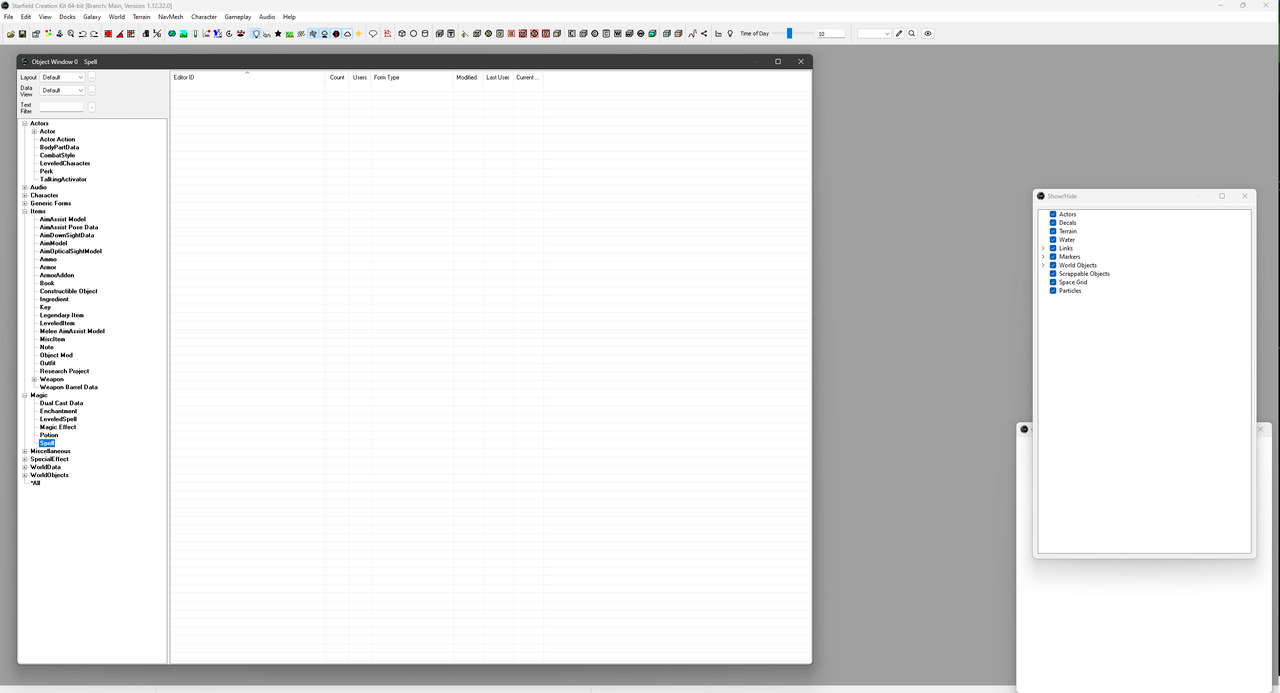
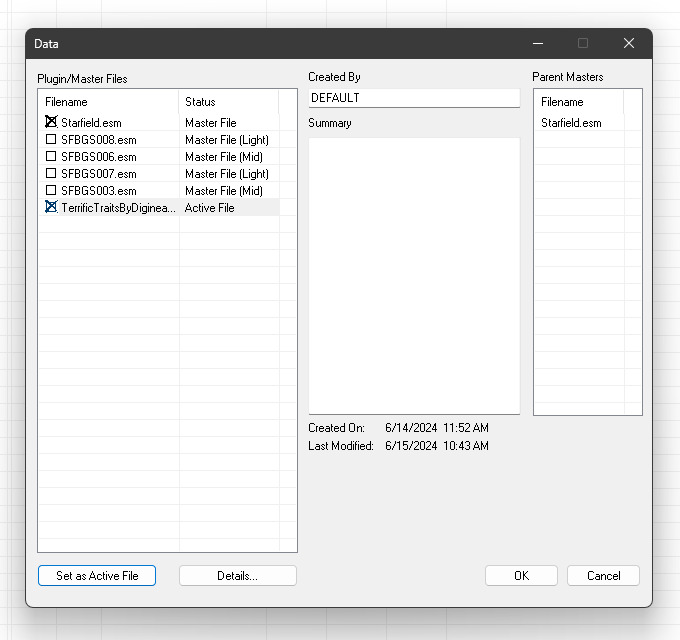
Load Starfield.esm in the Creation Kit, then save a new plugin. When reopening it, select your plugin as the active file.
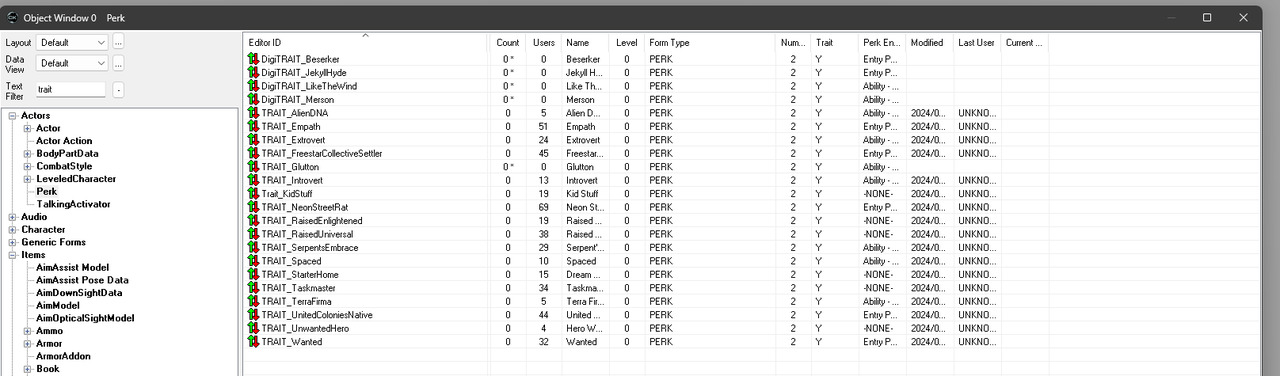
In the Object Window, filter the Perk records for traits. Open Alien DNA as a reference and inspect its Playable and Trait flags.
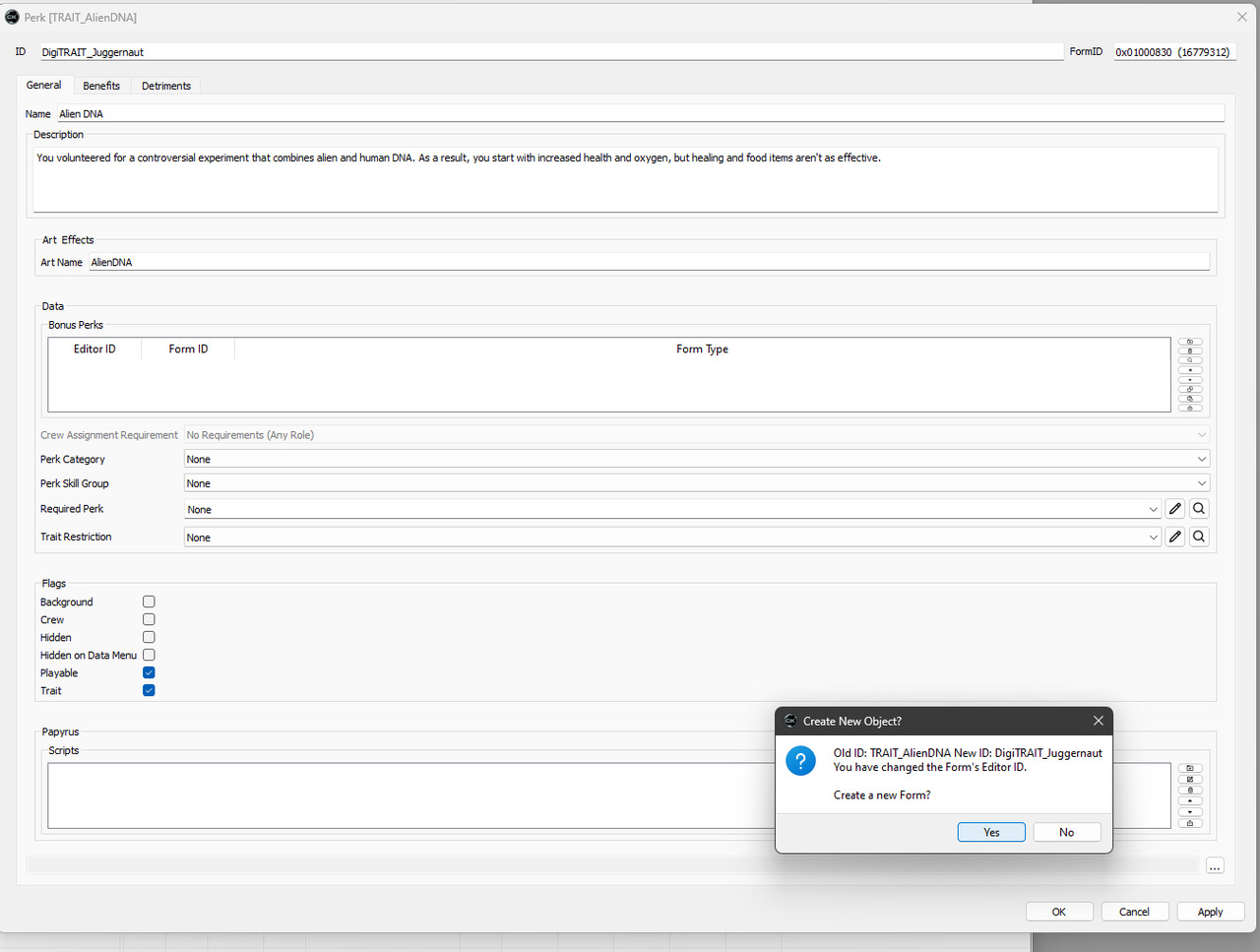
Duplicate the reference record by assigning a unique editor ID and accepting the prompt to create a new form. Use a prefix such as dnx so your records are easy to find.
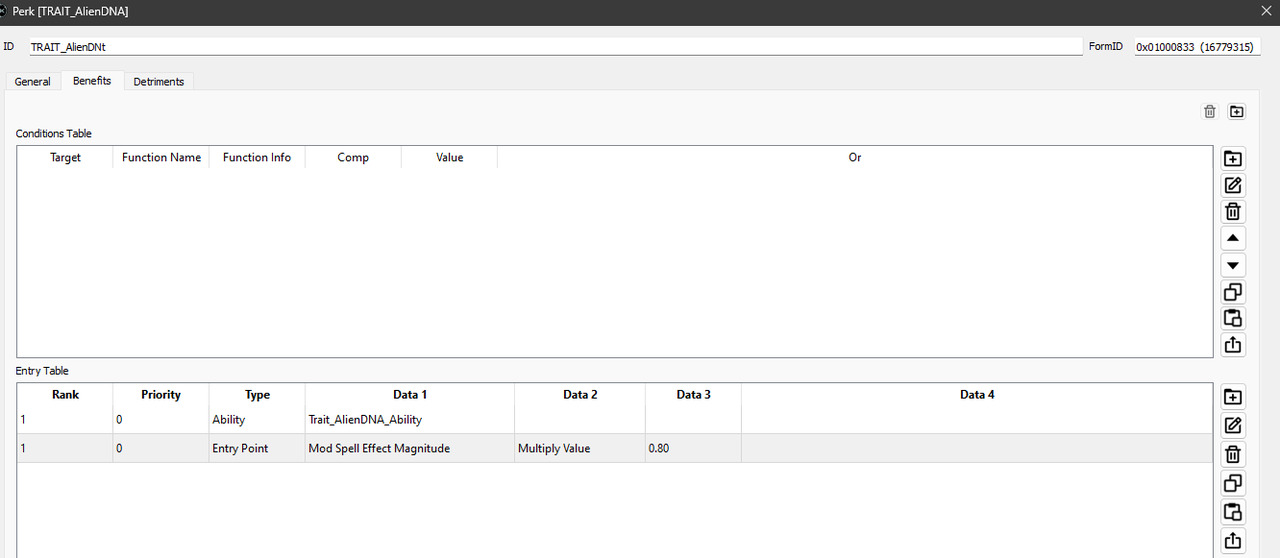
Change its displayed name and description. Remove inherited ability and entry-point effects that your new trait will not use.
Add an armour-rating bonus
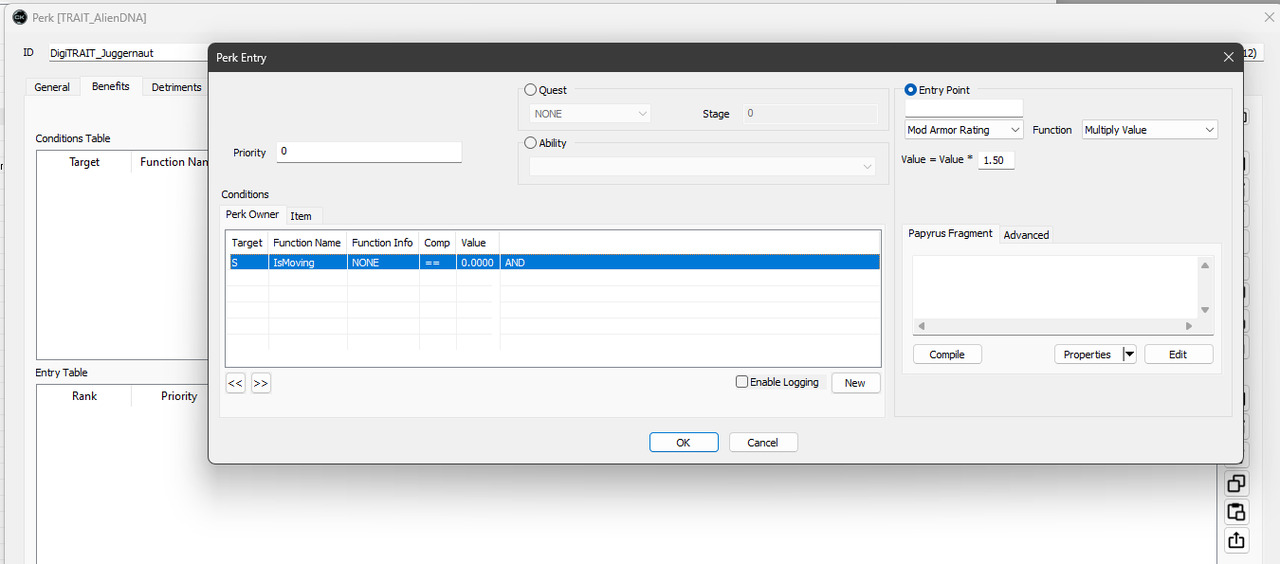
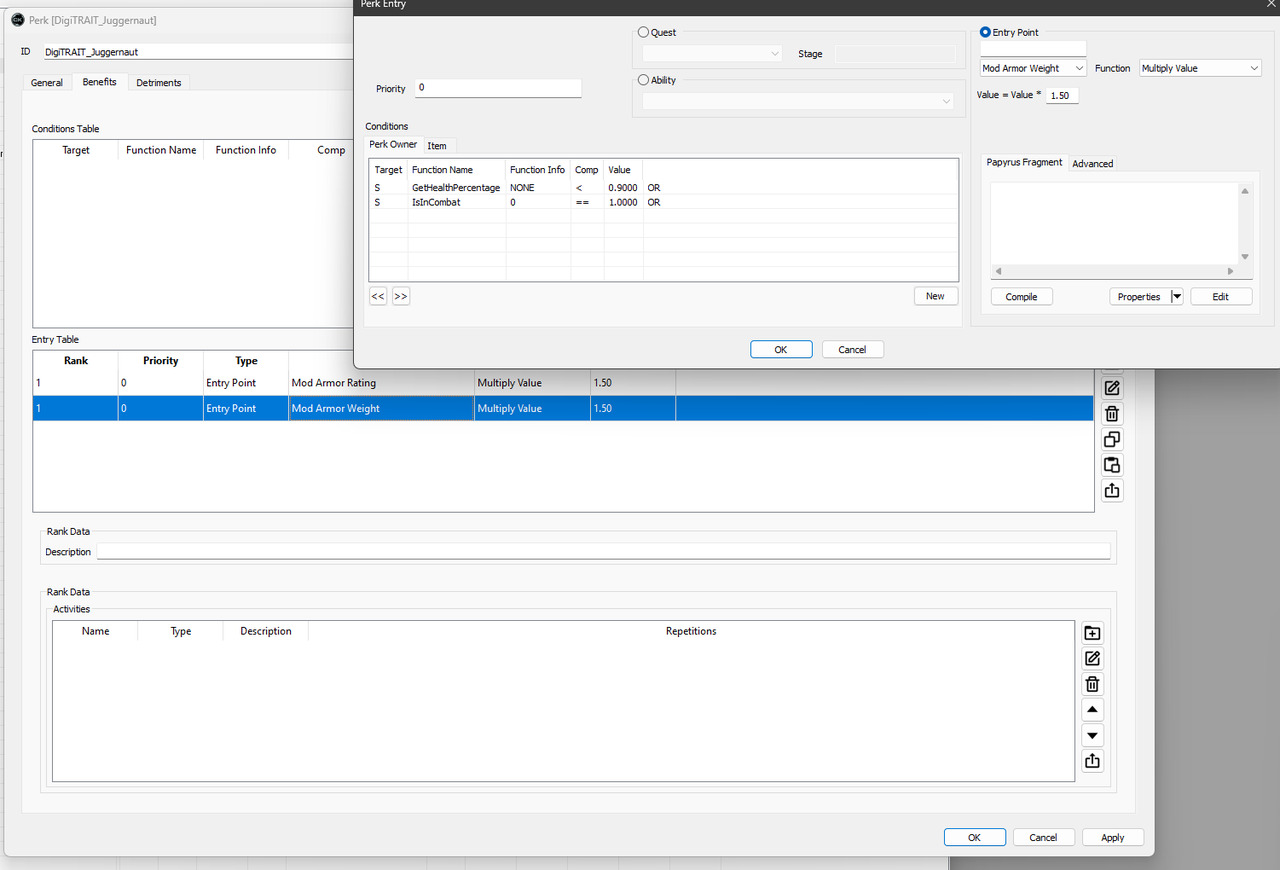
Create an entry point using Mod Armor Rating → Multiply Value → 1.5. This is a 50% increase. Add IsMoving == 0 if it should apply only while stationary. If it should also require combat, add IsInCombat == 1 with AND logic. The description must match the conditions you actually set.
Add a conditional drawback
Create a separate entry that modifies armour weight, using its matching entry point and a 1.5 multiplier. Add conditions for IsInCombat == 1 and GetHealthPercentage < 0.9. GetHealthPercentage belongs in the conditions, not in the entry-point effect selector.
Use OR when either condition should activate the drawback; use AND when both must be true. Keep separate effect entries for the rating bonus and weight penalty, since they need different conditions. Weight changes may not appear until the inventory recalculates.
Test the result
Save and load the plugin, create a test character, and check all combinations of moving/stationary, combat/out of combat, and health above/below 90%. Confirm that the trait appears once, that its description is correct, and that you have not overwritten the vanilla template. Adding new records reduces conflicts, but does not guarantee compatibility with every mod.
You can inspect Terrific Traits as another example. Credit the author if you reuse its work.
Here is the revised article with the newer-tool disclaimer at the top, the suggested technical clarifications, and the merging precautions added. I’ve retained your original wording and structure wherever possible, without adding horizontal rules or changing unrelated content.
Revised article
Disclaimer: A newer fan made modding toolkit called Riftstone is now available for Dragon’s Dogma: Dark Arisen. It may be a better option than ARCtool for some tasks, although it is still in alpha and its in-game plugins are still being tested. This guide uses the established ARCtool workflow, which remains useful for many existing mods and tutorials. I’ve not used riftstone yet Myself.
The games files are mostly compressed into encrypted .arc files. These files can be extracted and decrypted using FluffyQuack’s ARCtool. It not only extracts them, but converts supported formats into more human-readable and editable file types. These can then be repacked into a .arc and used to mod the game files.
Prepare the tools
First we need the latest version of FluffyQuack’s ARCtool.
This is an older version, but has some optional files we will need, unless you want to write your own .bat files or command-line commands.
Copy all of the .bat files beginning with pc into our ARCtool folder from earlier.
Do not copy the .exe, as it is an older version.
Alternatively, you can try Riftstone, which includes its own toolkit for archive processing and editing game data. Follow its installation instructions rather than mixing its workflow with the ARCtool instructions below.
Extracting the game files
There are two main file types you will want to edit for modding: .xfs and .tex. There are corresponding batch files with those extensions in their names. .xfs files contain game data and can be converted to XML, while .tex files are texture resources. Other file types are also present, and not all game data can be converted into XML. Decide which you want to edit before continuing.
For this guide I will assume we are working on game_main.arc.
Copy the .arc to the same folder as ARCtool.
This is optional, but saves you having to redownload part of the game every time you want an unmodded .arc.
Drag the .arc onto the relevant .bat file.
In this example we want pc-dd-xfs-conversion.bat.
This will create a folder with a name matching the .arc, which contains extracted files and, for supported formats, converted XML duplicates.
Merging Mods
To merge mods, you need to know what files the authors edited within the .arc. If they edited different .arcs, you don’t need to merge those archives together. Some authors provide mergeable files or instructions.
If not, you may be able to estimate which files they touched using the database below, based on what their mod claims to alter. Treat these estimates as a starting point rather than confirmation, and check the actual files where possible.
Before merging, make a backup of the original archive and extract the target .arc. Preserve the internal directory structure when copying files, and use the appropriate conversion and repacking options for the file types involved.
Once the above is solved, extract the target .arc.
You can use a vanilla .arc or one of the mods’ .arcs.
Copy the mergeable files from the mods to the correct file paths in the newly extracted folder.
If two mods edit the same file, compare their changes and merge them within that file if you understand its format. Otherwise, you will need to choose which version to keep.
Drag the extracted folder onto the relevant .bat file.
Copy the newly created .arc into the correct file path in the game files.
Test the game to make sure the changes work as expected.
Note that mods that alter the same files within an .arc cannot necessarily be merged by simply copying the files together. One version will overwrite the other unless the changes are combined manually. Mods that alter different files within the same archive can often be merged.
If you use Mod Organizer 2 with the ARCtool plugin, it can help extract conflicting archives and merge enabled mods according to their priority. This is an optional alternative to manually merging files.
Repacking to .arc
Once you have finished editing an extracted .arc folder, you can repackage the folder into a .arc by dragging it onto the relevant .bat file.
Make sure you use the appropriate conversion and compression options for the files you have edited. Keep a backup of the original archive until you have tested the repacked version in-game.
Modding the files
Each .xml is a little different and difficult to decipher. Not only is a lot of it written by non-native English speakers, but it is also written in entirely undocumented formats that use numbers to name variables. Luckily for you, the community has deciphered some key files. This research I have turned into a guide and database here.
Used in Signette‘s spell pack. Example 1, Example 2, Example 3, Example 4. wan.arc may correspond to sorcerer skills, magic or skills as a whole. These associations should be treated as tentative until verified.
Your USI VET transcript shows nationally recognised vocational education and training (VET) reported since 2015. It is an Australian Government service that can help you prove your qualifications to employers or education providers.
Note: It does not replace certificates or statements of attainment issued by your training provider entirley. Some orgnizations with stricter requirments may want to verify with the actual certificates instead.
Open View VET Transcript, read the disclaimer and select Next.
Select the training records to include. Choose all records for a full transcript or specific records for an extract.
Select Download Transcript.
When asked whether to create a viewable online VET transcript, select Yes if you want to share an authenticated online version. Choose an access period between one week and six months, then follow the prompts to confirm.
Download and save the PDF. If you created the online version, use the link or QR code in the document to let the intended recipient access the authenticated transcript.
Important notes:
If you choose not to create a viewable online transcript, the PDF will not include the authenticated link or QR code.
Online access expires after the period you select, and you can cancel access earlier.
The transcript may not include every qualification, particularly if training has not yet been reported or was completed before 2015. Check the record carefully and contact your training provider about missing information.
Your transcript contains personal information, so share it only with the intended recipient.
Ctrl+F opens Find in many browsers and document apps. Use it to look for a word or phrase in the page or document you already have open, without scrolling through everything.
It is handy for finding a download section, a setting in a long guide, or the comments below an article. On a Mac, the usual shortcut is Command+F.
Find the comments section: an example
Open the page you want to search. Hold Ctrl, tap F, then release both keys.
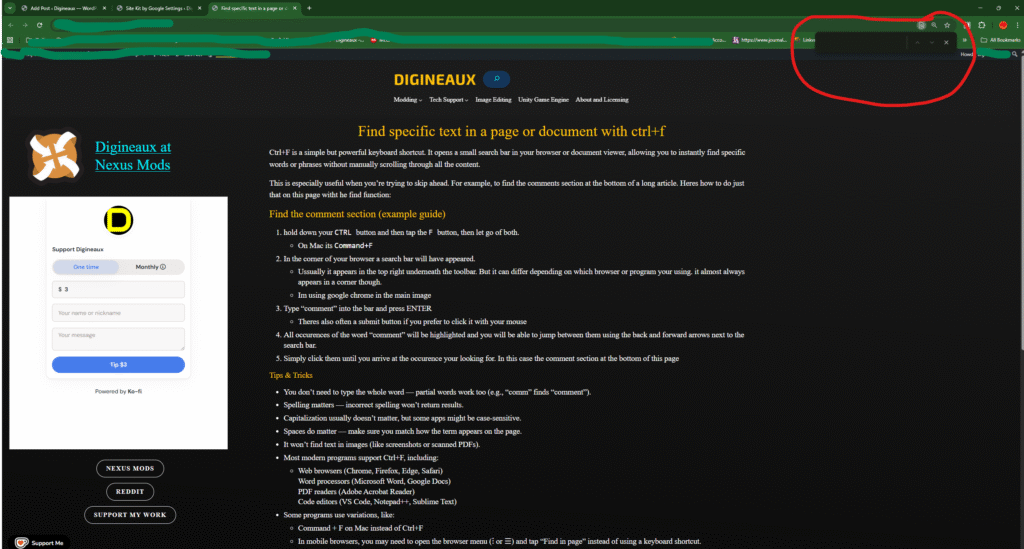
A Find box appears. Its position depends on the browser or app.
Type comment. Matching text is highlighted.
Use the arrows beside the Find box to move through the matches until you reach the comments section. In many desktop browsers, Enter goes to the next match and Shift+Enter goes back.
Close the Find box when you are finished. Desktop browsers usually let you press Esc. You can also simply click on an empty part of the page to unfocus and deselect the Find Box.
Tips when you cannot find something
Try a shorter search. comm can find comment or comments. Check for spelling mistakes and extra spaces.
Some apps have search options such as Match case or Whole words. Check whether these are excluding the result you want.
Comments, collapsed sections, or more results may need to be opened before their text can be found.
Text in a screenshot or scanned PDF needs text recognition, often called OCR, before ordinary Find can search it. A PDF that already has a recognised text layer can be searched.
On a phone, look in the browser menu for Find in page or Find on page.
Ctrl+F searches the current page or document. To find an article elsewhere on a website, use that website’s search instead.
You can get a plain-text list of files in a Windows folder using Command Prompt or PowerShell. Use it to check your installed mods, keep a file inventory, or send a list to someone helping you troubleshoot.
Replace C:\path\to\your\folder in the examples with your folder’s actual path. Keep the quotation marks, especially if the path contains spaces. These commands list files; they do not open or change them.
Option 1: Command Prompt
Press Windows + R, type cmd, and press Enter. Then run:
dir /b /a:-d "C:\path\to\your\folder"
This prints file names without the usual dates and sizes. It excludes folders and includes hidden and system files. It only lists the folder you specified. To include its subfolders and show full paths, add /s:
dir /b /s /a:-d "C:\path\to\your\folder"
If you prefer to change folders first, use cd /d "C:\path\to\your\folder", then run dir /b /a:-d. The /d lets Command Prompt change drives as well as folders.
Option 2: PowerShell
Press Windows + R, type powershell, and press Enter. For file names only, run:
Get-ChildItem -LiteralPath "C:\path\to\your\folder" -File | Select-Object -ExpandProperty Name
-LiteralPath treats characters such as square brackets as part of the path. -File excludes folders. PowerShell leaves out hidden and system files by default; add -Force if you want them included.
To include subfolders and show each file’s full path, use:
-NoClobber prevents overwriting an existing filelist.txt. If that name is already taken, change it to something like filelist-2.txt. Open the saved file in Notepad to copy or share the list.
File names and full paths can contain personal information, including your Windows username. Read through the list before sharing it.