This is very common in Logitech models like the Logitech G733. But it occurs in other brands and models soemtimes too. You’ve tried everything you can think of; driver updates, resetting the software, changing the mixers in steelseries sonar, turning them off and on etc.. But the solution is fairly well hidden despite being so simple. It certainly took me an embarrisingly long time to figure out.
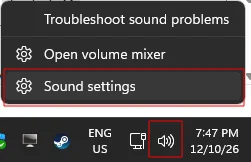
Right click the Windows taskbar volume icon and open Sound settings.
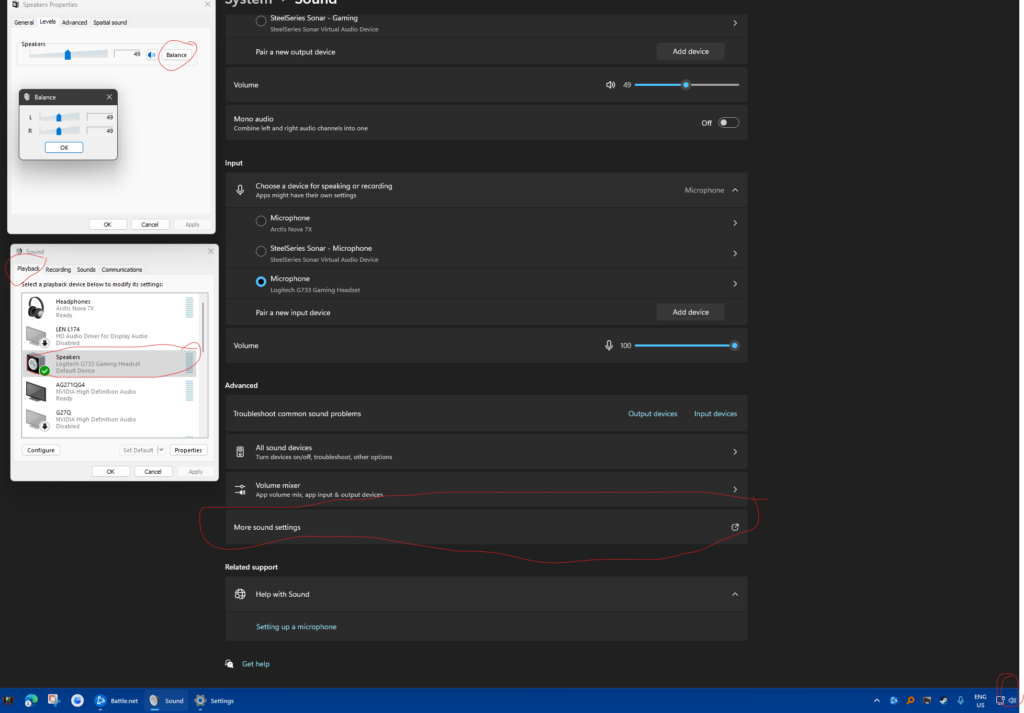
In sound settings you will see an “Advanced” section towards the bottom (you may need to scroll down). Click the “More sound settings” button inside that section.
If you don’t care about surround sound, you can also try toggling on the “Mono audio” setting, which combines the left and right chanels into one and plays it to both ears.
In the new window that pops up, be sure your on the “playback” tab. Then search for your headset, right click on it and select “properties” from the context menu. Yet another window will pop up.
In this new window click on the “Levels” tab. It will display a screen with a volume bar. At the end of the bar should be a button called “Balance”. Click it for yet another window pop up (nobody ever accused Windows 11 of having a good UX).
In this final window we finally have a left and right audio chanel balance settings. First try setting them both to the same value and hopefully everything sounds good. If not or if they were already set to the same values, then as a work around you will need to fiddle with the balance until you get it sounding right. Unfortunately it’s just trial and error.
Leave a Reply