Category: Games

  • AMP Installing to the wrong drive or directory fix

    AMP Installing to the wrong drive or directory fix

    AMP by Cube Coders is a fantastic game server management tool, automating and simplifying alot of otherwise headache inducing tasks related to managing such servers. However it does have some rough edges. In this case it will install files to the first empty drive it finds or otherwise seemingly a random drive, which is far from ideal, especially if you have USB devices connected.

    Here is the fix for windows 11(should work for any windows version) , working as of 28/04/2022:

    1. Close AMP and Kill any AMP proccesses in task manager
    2. Uninstall via windows
    3. Reinstall
    4. Run through the install wizard as normal and create an instance when prompted
    5. complete the instance wizard until AMP reboots.
    6. Close AMP and kill any proccesses with task manager
    7. Navigate to “InstanceManager.exe” inside the “AMP” folder, within the main install and launch it
    8. select “No”
    9. Right click on the only instance in the list and select “Uninstall Service” and then close the application.
    10. Find AMPDatastore folder and move it where desired
    11. Open REGEDIT and navigate to: Computer\HKEY_LOCAL_MACHINE\SOFTWARE\CubeCoders\AMP\InstanceManager
    12. Edit the “InstanceStore” entry to match the diesired folderpath.
    13. Inside the AMPDatastore folder find and open “instances.json” (i reccomend notepad++)
    14. Look for the line beginning with “”Path”:”.
    15. Change the letter to the correct drive and add AMPDatatstore folders filepath to the beginning
      instead of: “Path”: “J:\AMPDatastore\Instances\AMPInstance1-ADS”,
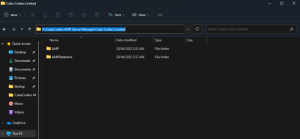
      Make it: “Path”: “F:\CubeCoders AMP Server Manager\Cube Coders Limited\AMPDatastore\Instances\AMPInstance1-ADS”,
      for example
    16. Launch InstanceManager again and confirm everything is where it should be.
    17. from here on you can launch with the main shortcut or exe as normal.
  • Stupid Invaders Crashing or freezing on button press or click FIX

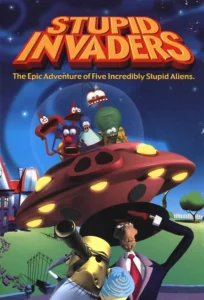
    Stupid Invaders Crashing or freezing on button press or click FIX

    This fix was successfully applied to the retail disc version of the game, on a windows 10 machine, on the 10/05/2022.

    First try running it in compatiblity mode:

    1. Right click on the shortcut or executable
    2. Select “Troubleshoot Compatibility”
    3. Select “Try recommended settings”. This will probably apply a windows XP service pack compatibility.
    4. Click “Test the program…”
    5. If that fails, close the troubleshooter window and try the next fix.

    The Stupid Invaders 2000/XP Patch

    1. Go here: https://archive.org/details/StupidInvaders2000xpPatch
    2. On the right hand side under download options, click on “WINDOWS EXECUTABLE”
    3. Open and run the downlaoded executable.
    4. Select “PATCH!”
    5. Wait for the confirmation message, then close the patch window
    6. Launch the game

    Hopefully your game is now working fine. These are the steps i used to get it working for a client, but if they don’t work for you heres some other stuff you can try: https://www.pcgamingwiki.com/wiki/Stupid_Invaders