If your Intel based ASUS ROG Flow Z does not detect its internal SSD during Windows installation, try the following methods.
Load the storage driver
- Find the support page for your exact ASUS model.
- Download the Intel Rapid Storage Technology (IRST/RST) driver, if your model requires it, and extract the files to a USB drive.
- At the Windows Setup drive selection screen, select “Load Driver” and browse to the extracted driver files in the USB from the previous step.
- Select the matching Intel RST VMD Controller driver and continue. The SSD should appear if the missing driver was the cause.
Alternative: Disable VMD
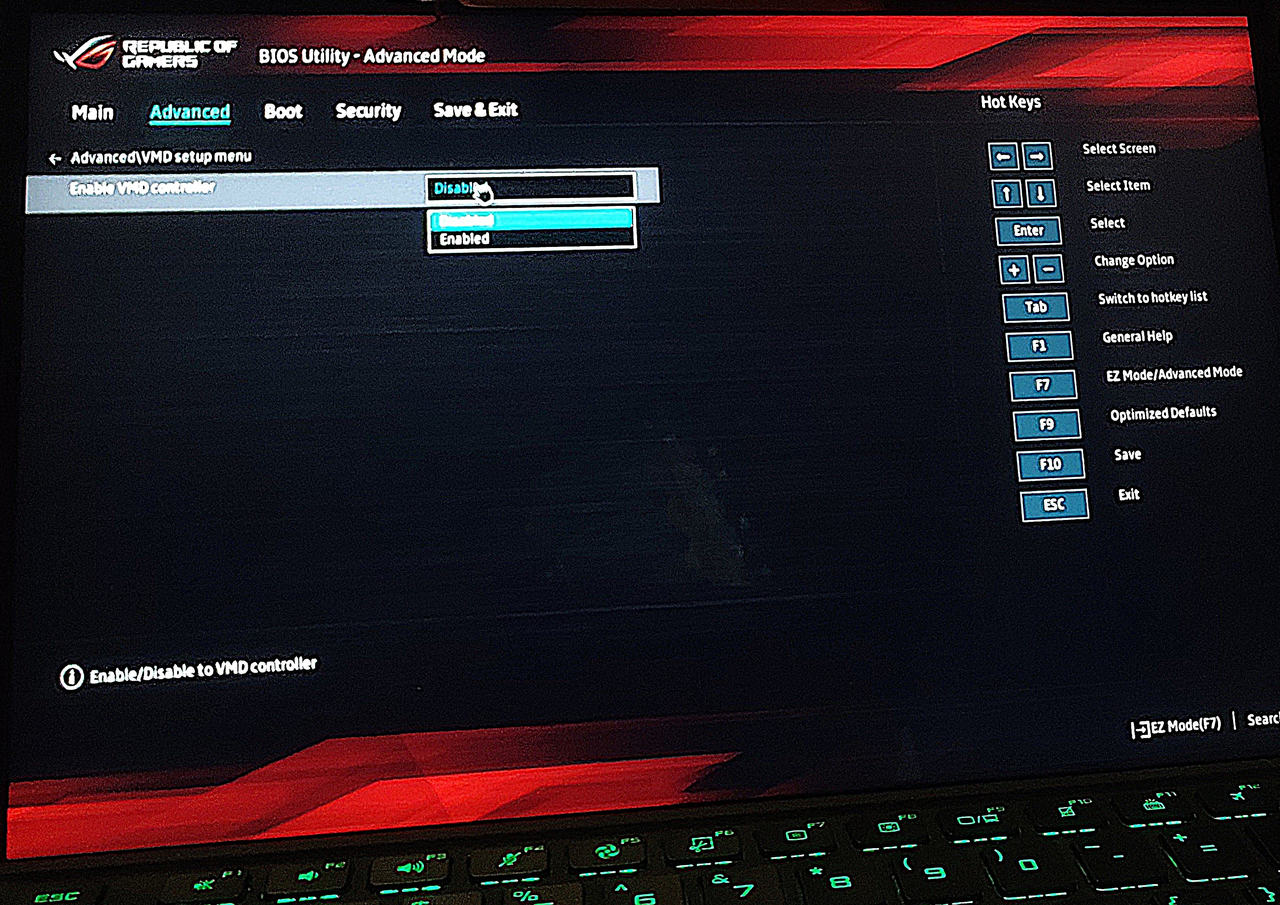
For a clean installation, you may be able to disable VMD instead.
- Save and exit, then restart Windows Setup.
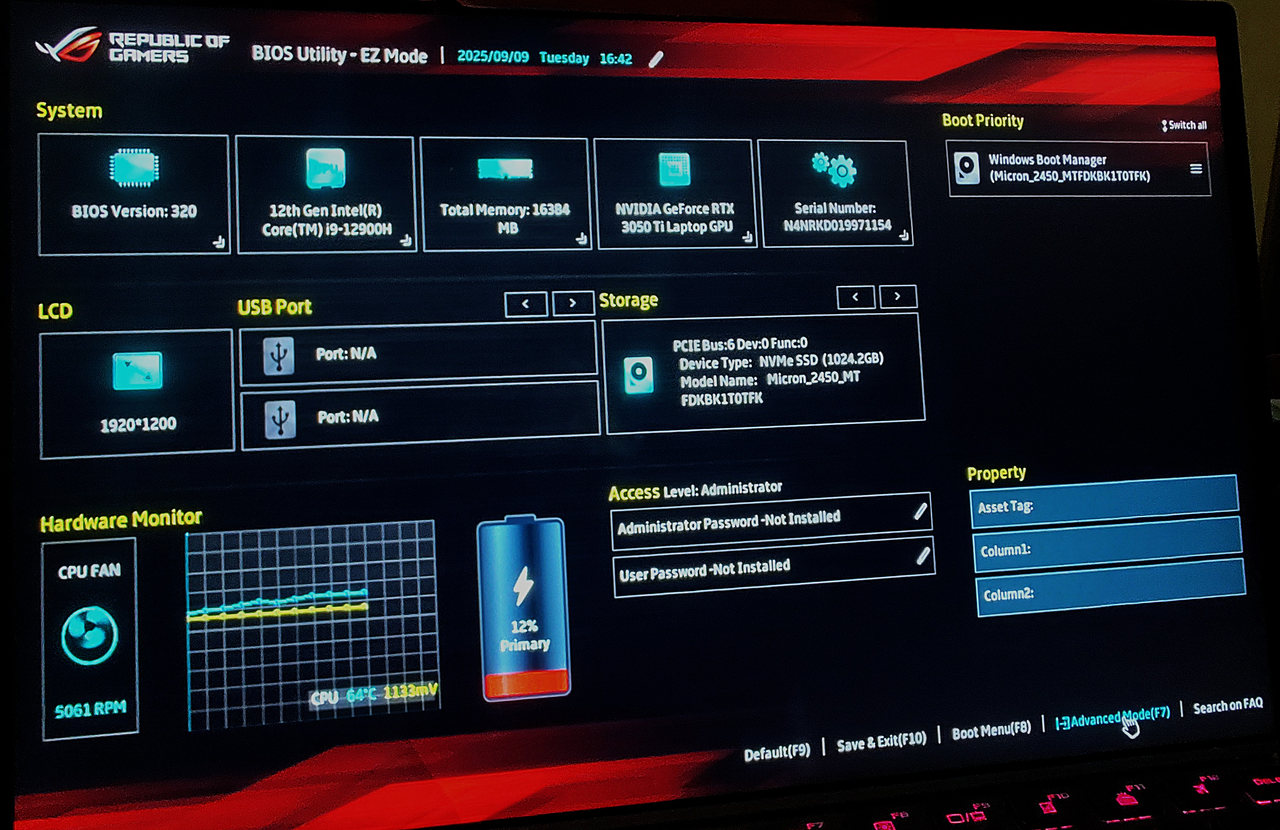
- Enter UEFI by holding F2 while powering on the device.
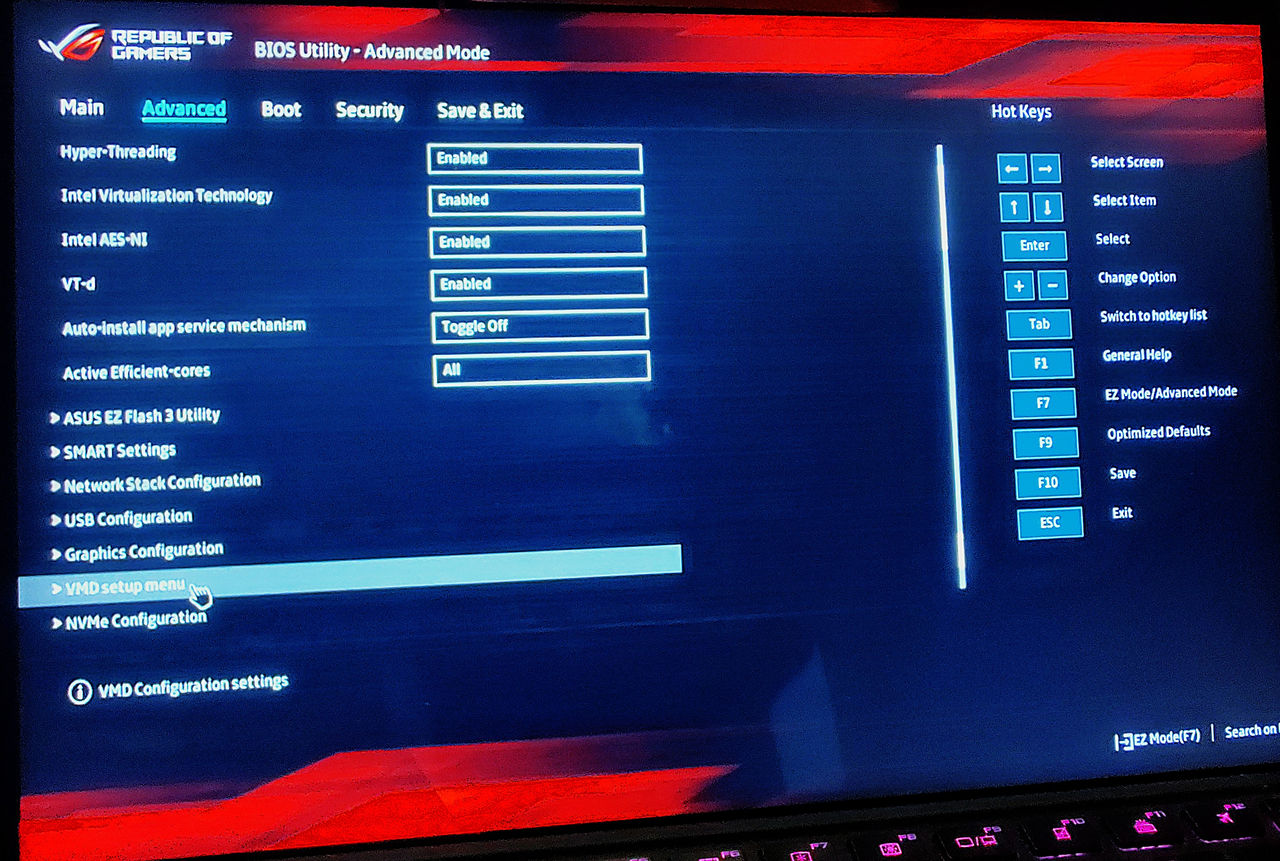
- Press F7 to open Advanced Mode.
- Look for Advanced > VMD Setup Menu and disable the VMD controller.
ASUS’s missing-drive troubleshooting guide covers both methods.
Leave a Reply