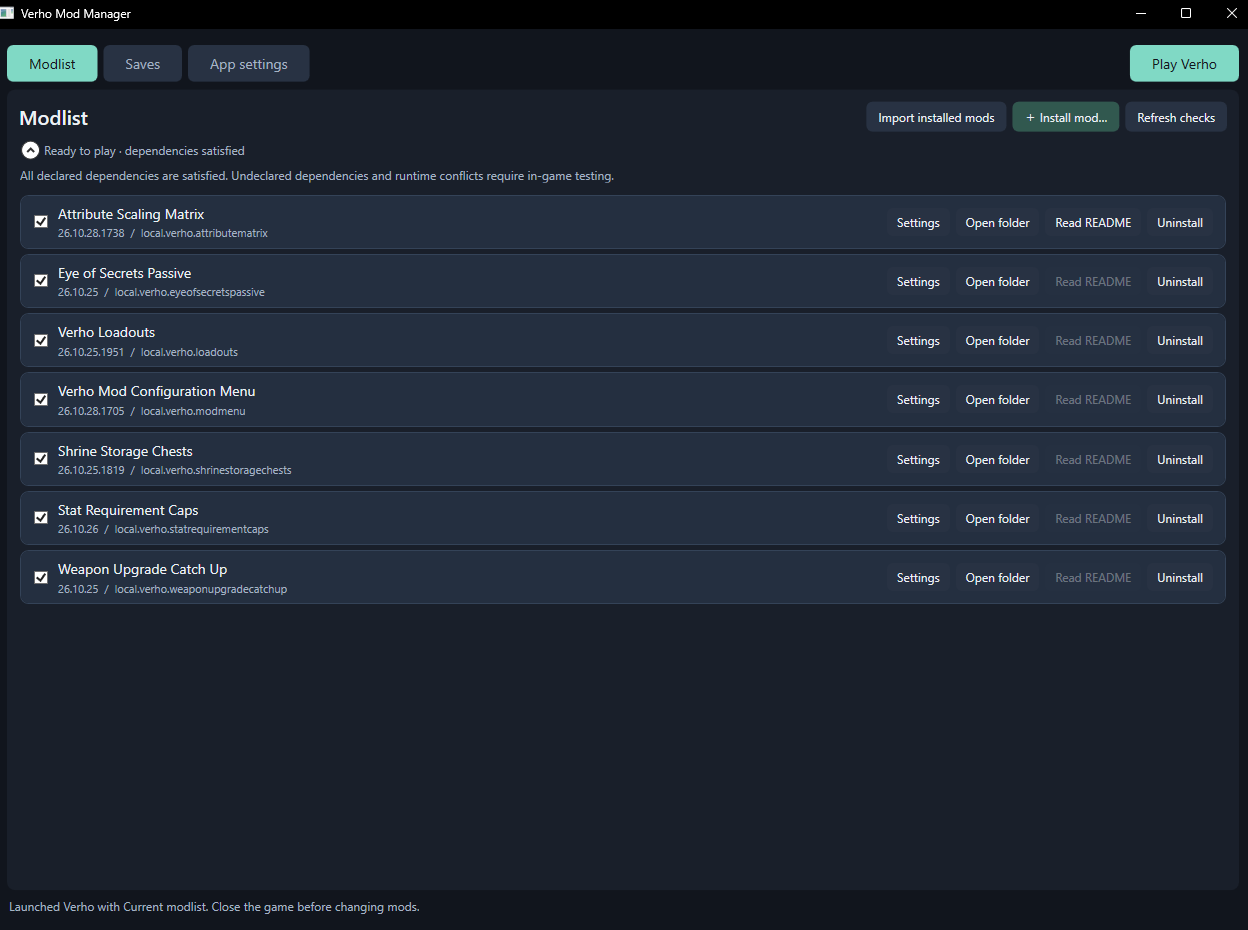
Verho Mod Manager is a portable Windows application for Verho – Curse of Faces. It installs BepInEx, manages your mods, checks declared dependencies, edits mod settings and backs up your saves.
What it does
- Install BepInEx automatically. Download and install the supported BepInEx 5.4.23.5 Windows x64 build, with a SHA-256 check before installation.
- Install and remove mods. Add supported ZIP packages or DLLs, import mods already installed in the game, and enable, disable or uninstall individual packages.
- Check dependencies. Detect missing required mods, minimum-version requirements, duplicate plugin IDs, declared incompatibilities and overlapping package files.
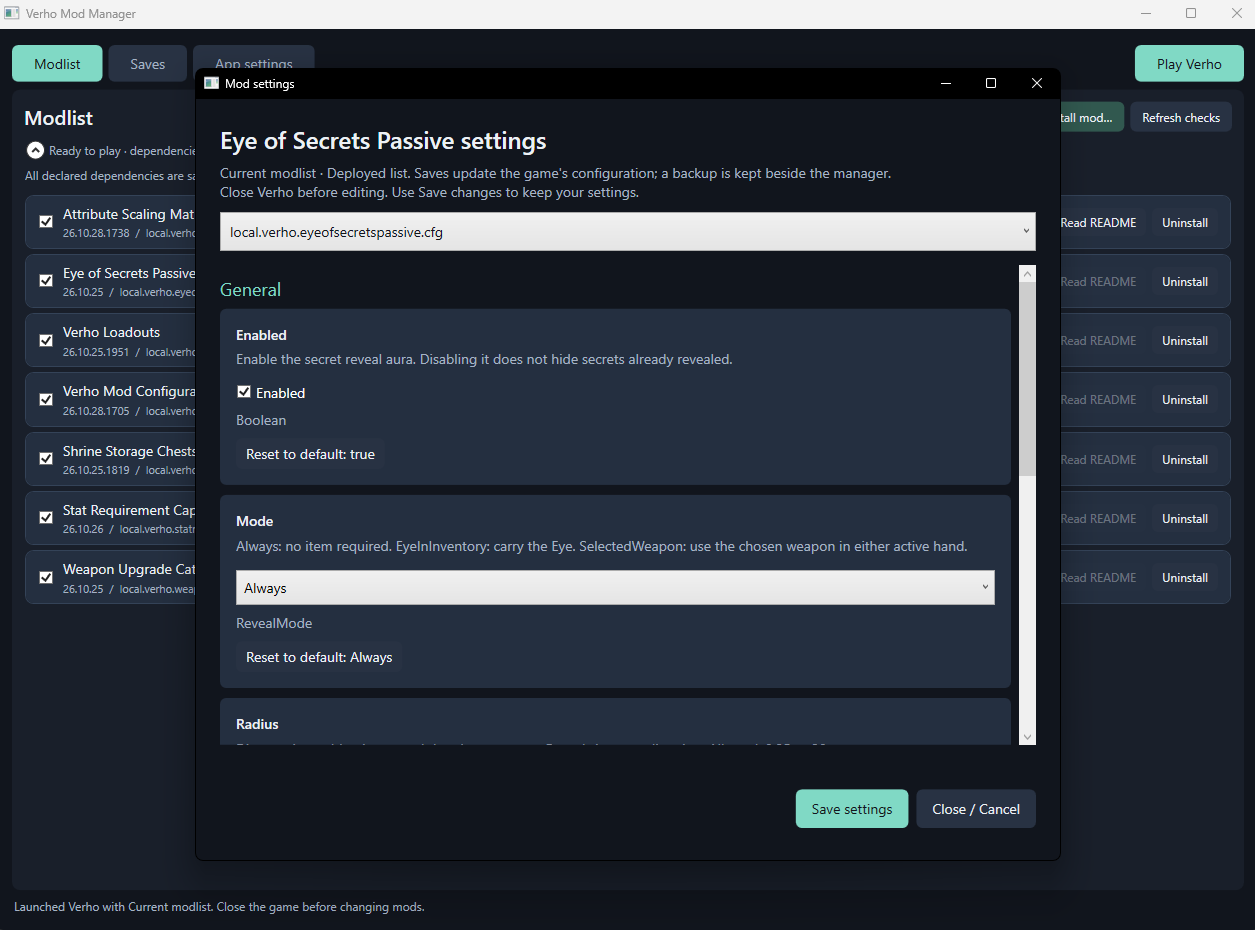
- Edit mod settings. Open standard BepInEx settings from each mod row, with descriptions, defaults, dropdowns and numeric limits where the mod declares them.
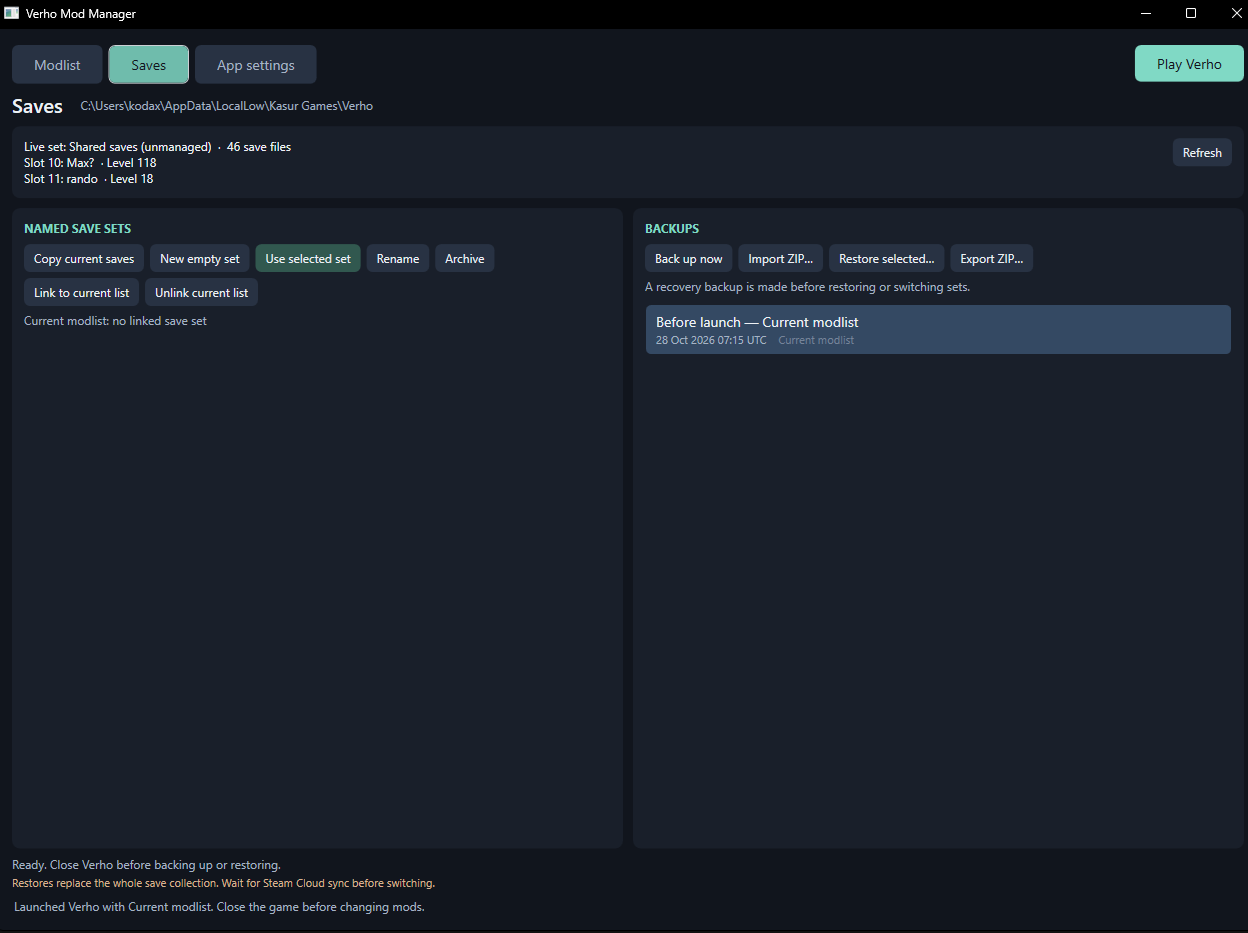
- Manage saves. Back up and restore complete save collections, create named save sets, and import or export save backups as ZIPs.
- Open a mod’s files. Each row has buttons for its containing folder and README. READMEs open through your normal Windows application.
- Work with several mods at once. Use Ctrl and Shift selection, then right-click to enable, disable or uninstall the selection.
Getting started
- Extract the download into an empty folder. Keep all extracted files together.
- Close Verho and run
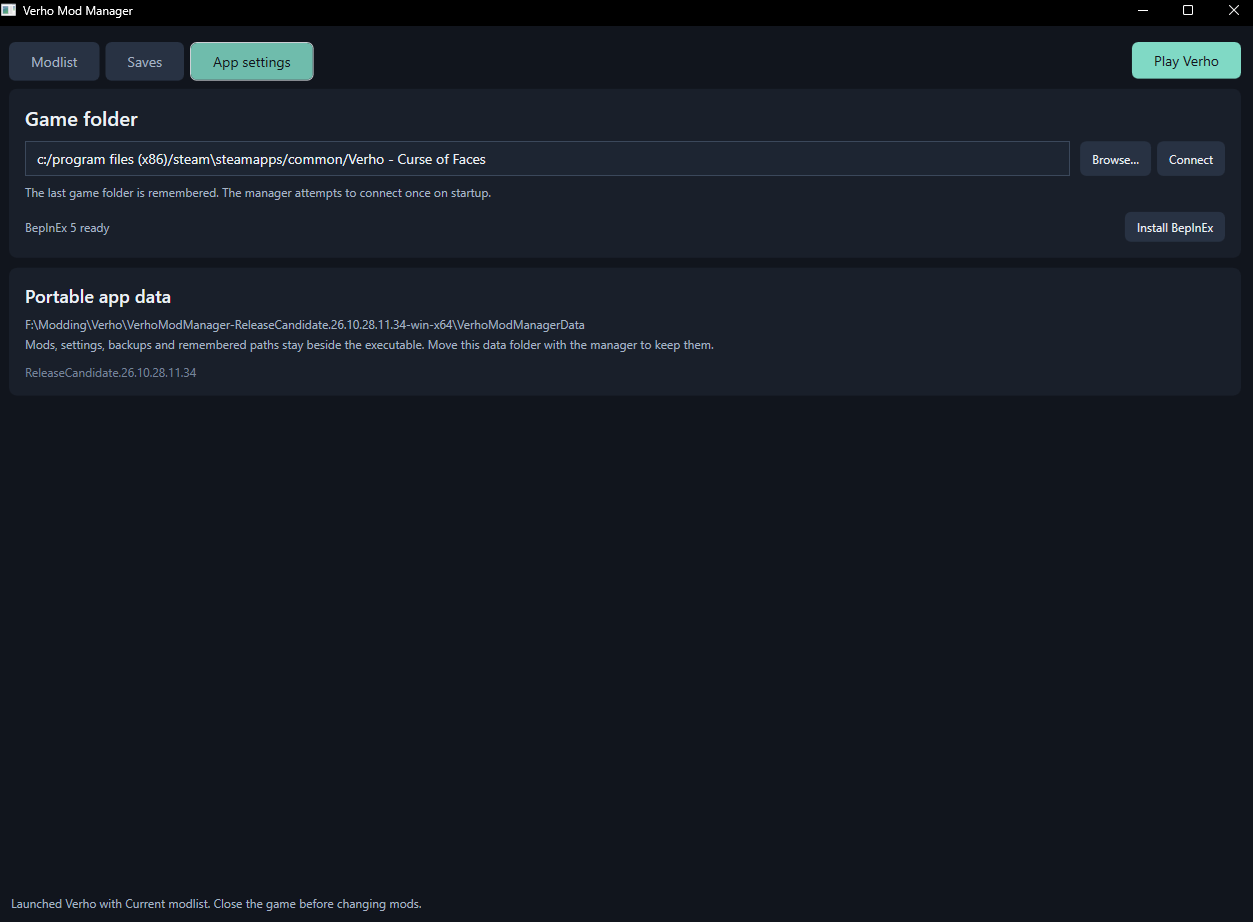
Verho.ModManager.exe. - The manager attempts to connect to your game folder once on startup. Use Browse and Connect in App settings if the app doesn’t automatically find your Verho installation.
- If the game already has mods or BepInEx settings, choose Import installed mods to bring them into the list.
- Use Install BepInEx if it is not already installed.
- Add your mod ZIPs or DLLs by dragging them into the mod list window or browsing to them via the Install mod button.
- Review dependency warnings in the top left, if any.
- Click Play Verho when ready. The manager deploys enabled mods, backs up saves and launches the game.
List changes are remembered automatically. Use Play Verho to apply them to the game; launching Verho elsewhere uses the last deployed mod files.
Disabling and uninstalling
Untick a mod to disable it while keeping its package in the manager. Tick it again to enable it without reinstalling.
Uninstall a mod to remove its entry and delete its stored package and README. Install its ZIP or DLL again if you want it back. Settings, original downloads and existing backups are kept. If a file is locked, deletion can be retried through Refresh checks or by restarting the manager.
Both actions take effect in the game on the next Verho launch. Neither changes an already running game.
Clear choices when game files differ
If game plugins have changed since the last deployment, the manager lists the mismatches before launching. Each file has separate Game directory and Current mod manager list details. Pending list edits and unticked mods are labelled separately from unexpected game folder changes.
- Overwrite mod manager with game files: import the game’s installed plugins and settings, replacing pending list changes.
- Overwrite game files with mod manager list: deploy your enabled mods and current settings, backing up existing game files first.
- Close window and don’t launch the game: leave both sides unchanged.
Save backups and separate playthroughs
The Saves tab manages complete save collections, including character slots and their shared indexes. You can create a named set from your current saves, start an empty set for another playthrough, or restore a backup. Restoring or switching saves creates a recovery backup first. You can also link a save set so the manager offers to switch to it when you launch.
Close Verho and let Steam Cloud finish syncing before restoring or switching saves. The manager does not edit individual characters or merge save slots.
Portable storage
Settings, stored mods and backups live in VerhoModManagerData beside the application. Game, mod and backup folders use readable names. Each fresh portable installation starts independently, with no automatic migration from older manager data. Moving the whole folder, including its data, carries that installation with it.
Installed BepInEx files and deployed mods still go into the game folder. Verho’s live character saves stay in their normal location.
Compatibility notes
Dependency checks read declarations from mod DLLs without running their code. They cannot detect undeclared requirements or every gameplay conflict, and dependency mods are not downloaded automatically. This release supports ZIP and DLL mod packages; RAR, 7z and preloader-only packages are not supported. It does not include an online mod catalogue.
The settings editor supports standard BepInEx configuration files. A mod may need to run once to generate its settings. Unsupported custom setting types remain read-only.
Leave a Reply