
Verho Mod Configuration Menu brings your mod settings into the game. Choose a mod, change its settings, and apply them from the main menu or pause menu. It works with ordinary BepInEx settings automatically. Modders can add named tabs, descriptions, custom action buttons and text prompts when they want more control over their menu.
Features
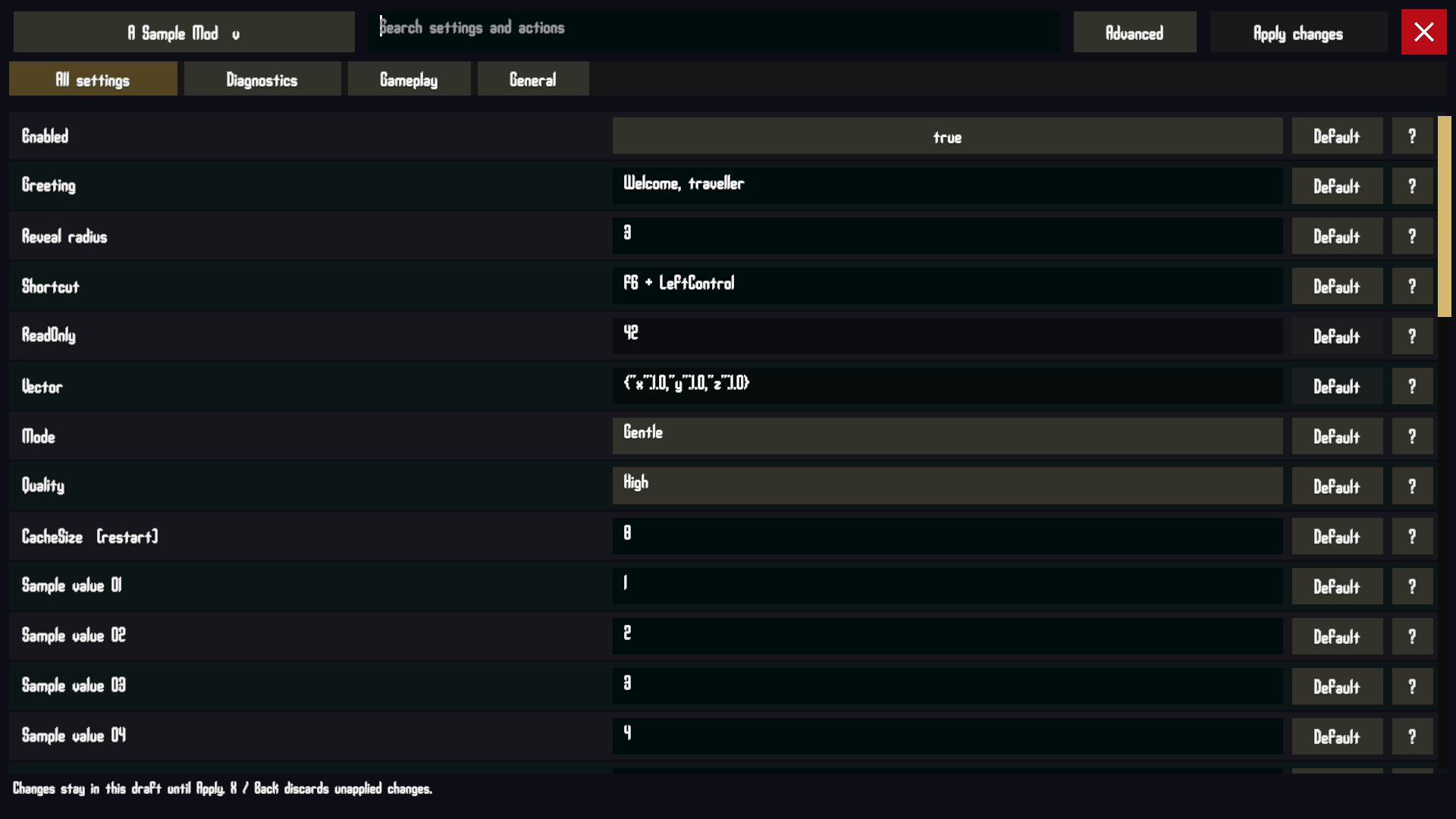
- An edge-to-edge menu with compact, full-width settings rows.
- A collapsible mod selector at the top left and search in the top bar.
- Scrollable settings and optional mod-defined tabs, with horizontal scrolling when the tabs overflow.
- Toggles, choice dropdowns and text inputs with a blinking insertion caret.
- Per-setting defaults and a ? button for descriptions and help.
- A draft of your changes: Apply changes validates and saves them; closing the menu discards unapplied edits.
- Custom action buttons supplied by mods, with optional availability checks and confirmation prompts.
- Settings stay in each mod’s own BepInEx configuration file.
Download
The ZIP includes the menu DLL, player instructions, a modder integration guide and example source code. BepInEx and the mods shown in the screenshots are separate downloads.
Installation
Use My mod manager or follow the manual steps:
- Close Verho.
- Install BepInEx 5 x64 in the game folder if you have not installed it already. Run the game once to generate its configuration, then close it.
- Open
BepInEx/config/BepInEx.cfg. Under[Chainloader], setHideManagerGameObject = true. - Extract the menu ZIP into the folder containing
Verho.exe. The DLL should be atBepInEx/plugins/ModMenu/Verho.ModMenu.dll. - Start Verho and select Mod Settings. Look below the main menu buttons, or below Exit in the pause menu.
Using the menu
Select a mod from the top-left dropdown. Search for a setting, choose a tab if the mod provides them, or use All settings. Long lists scroll. The Advanced button reveals settings marked advanced by their author.
Edit the values you want to change, then select Apply changes. Use Default to stage a setting’s original value. Select ? to read its description and any allowed values. The red X, Escape or Back closes the menu and discards unapplied changes. Applied changes remain saved.
Switching tabs preserves your draft. Apply saves pending changes across the selected mod’s configuration file. Apply or discard pending changes before switching mods or running an action.
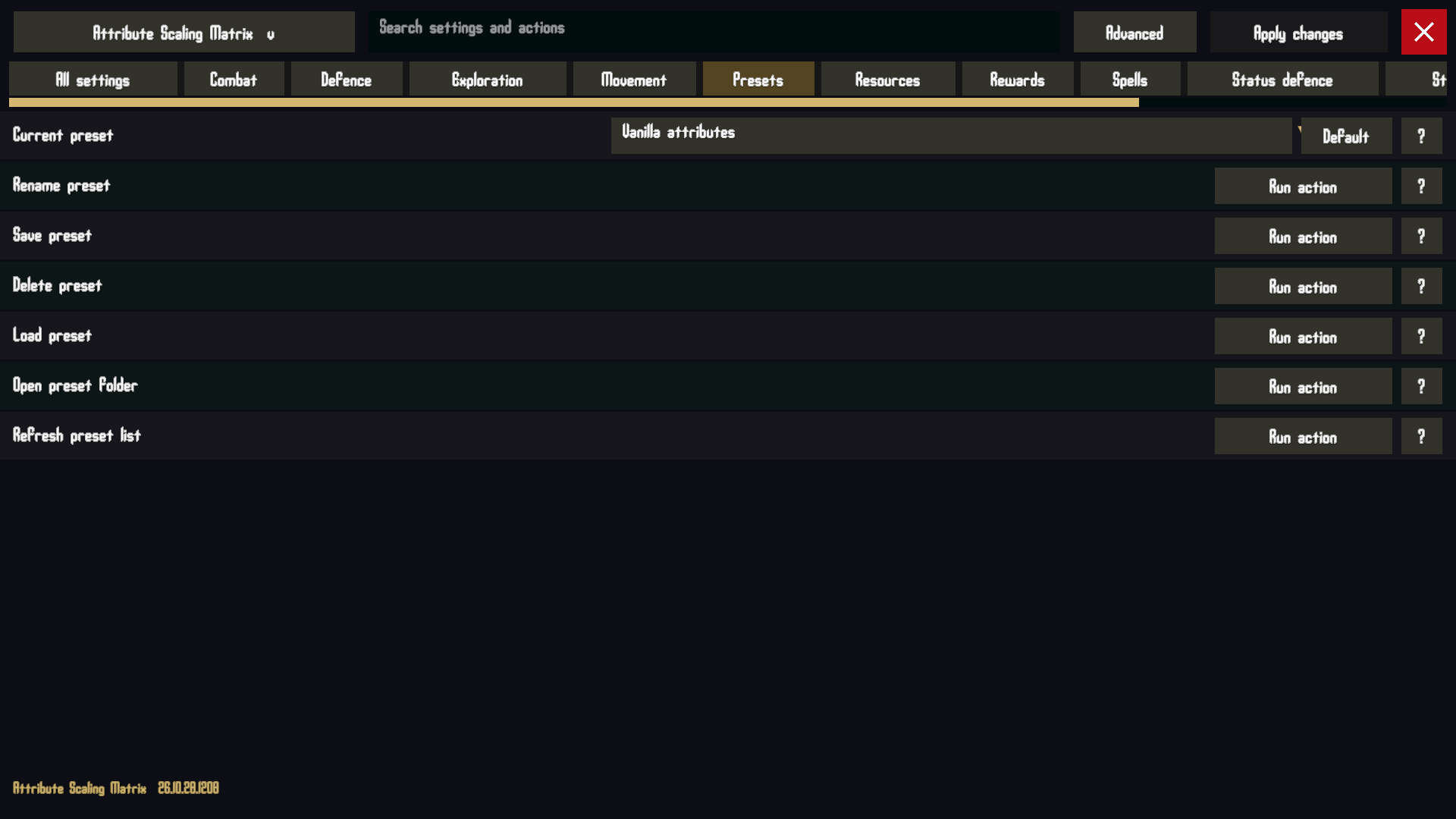
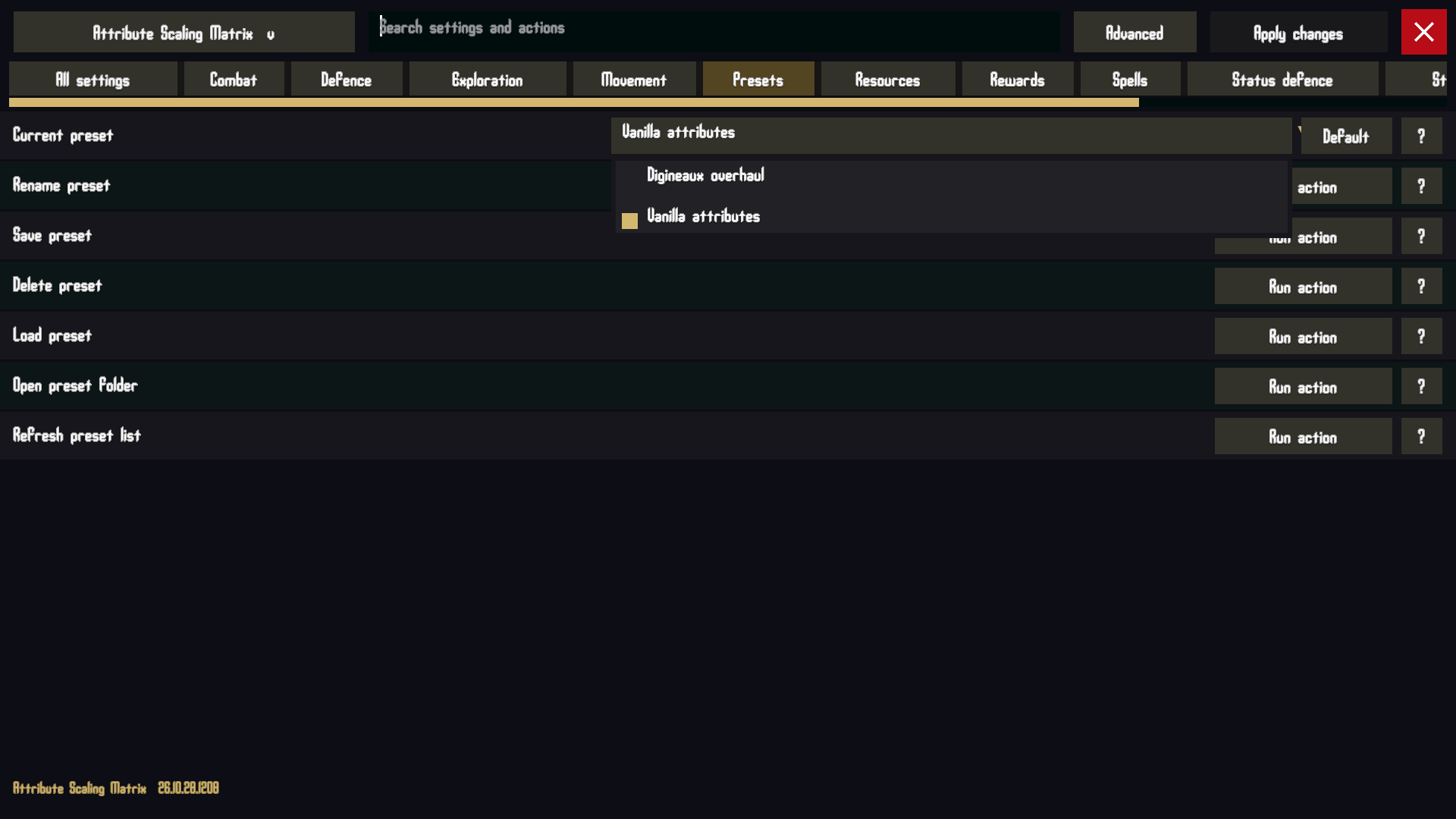
Action buttons run immediately. The owning mod decides what they do and may ask for confirmation. The preset controls shown above belong to Attribute Scaling Matrix; the configuration menu provides the interface for them.
For modders
Basic integration uses ordinary Config.Bind settings on your BepInEx plugin. These appear automatically without a menu dependency. Supported settings include Boolean, numeric, string, enum and BepInEx keyboard-shortcut values; unsupported types appear read only.
The optional Verho.ModMenu API adds display names, ordering, advanced and read-only flags, restart notices, tabs and extra configuration files. Mods can register custom action buttons and open cancellable text prompts. The included ModMenuModders.md guide covers integration, minimum feature versions and examples.
Leave a Reply