This guide shows you how to generate a plain-text list of files and folders using built in Windows tools. You can choose whether to include subdirectories, hidden files, and additional file information.
If you would prefer an easier method with a Graphical interface, checkout My app: List Lord A tutorial for list lord is included below.
This is particularly useful if:
- You need an inventory of files without manually recording them.
- You want to create a list of installed game mods or other files.
- You’re providing file information to an AI tool or support service for troubleshooting.
- You want to document the contents of a folder or computer.
There are several ways to do this in Windows. This guide covers Command Prompt, PowerShell, and List Lord, a portable application that lets you generate and export lists without having to write commands.
Option 1: Command Prompt (CMD)
Command Prompt is a quick way to generate a basic list of files and folders using commands already included with Windows.
- Open Command Prompt. Press
Windows + R, typecmd, and press Enter. You can also search for Command Prompt in the Start menu. - Navigate to your target folder. Enter the following command, replacing the example path with your folder’s location:
cd /d "C:\Path\To\Your\Folder"
Press Enter to run it. - List files only. Run:
dir /b /a-d
This displays the names of files in the current folder without listing directories. - List files and folders. Run:
dir /b
This displays both files and folders in the current directory.
Including subdirectories
To include the contents of subdirectories, add the /s parameter.
List all files and folders, including subdirectories:
dir /b /sList files only, including subdirectories:
dir /b /s /a-dThese commands display full paths when searching through subdirectories.
Saving your list to a text file
You can save the results directly to a text file by adding > followed by a destination path.
dir /b /s > "C:\Users\YourName\Desktop\filelist.txt"This creates a text file named filelist.txt on your desktop. Replace the example path with your preferred destination.
Note: By default, Command Prompt excludes hidden and system files. You can include them by using /a instead of /a-d when listing files only, or by adding /a when listing both files and folders.
Option 2: PowerShell
PowerShell offers more flexibility than Command Prompt, allowing you to select specific file information, include subdirectories, and customise your output.
Unlike the previous method, you don’t need to navigate into the target folder first. You can specify its location directly in each command.
- Open PowerShell. Search for PowerShell in the Windows Start menu, or press
Windows + R, typepowershell, and press Enter. - Choose a target folder. The examples below use
C:\Path\To\Your\Folder. Replace this with the location of the folder you want to list. - Run one of the following commands depending on what information you want to collect.
Listing files and folders
List files and folders in a directory:
Get-ChildItem -LiteralPath "C:\Path\To\Your\Folder"List file names only:
Get-ChildItem -LiteralPath "C:\Path\To\Your\Folder" -File | Select-Object -ExpandProperty NameList folder names only:
Get-ChildItem -LiteralPath "C:\Path\To\Your\Folder" -Directory | Select-Object -ExpandProperty NamePowerShell can also display additional information, such as file sizes and modification dates.
List file names and sizes:
Get-ChildItem -LiteralPath "C:\Path\To\Your\Folder" -File | Select-Object Name, LengthThe Length property reports file size in bytes.
Including subdirectories
By default, PowerShell only lists the contents of the specified directory. To include subdirectories, add the -Recurse parameter.
List all files and folders, including subdirectories:
Get-ChildItem -LiteralPath "C:\Path\To\Your\Folder" -RecurseList files only, including subdirectories:
Get-ChildItem -LiteralPath "C:\Path\To\Your\Folder" -File -RecurseInclude hidden and system files and folders:
Get-ChildItem -LiteralPath "C:\Path\To\Your\Folder" -Force -RecurseThe -Force parameter includes hidden and system items that would otherwise be excluded. It does not bypass file permissions, so some protected folders may still produce access errors.
Saving your PowerShell list to a text file
You can use Set-Content to save the results of a PowerShell command to a text file.
Save file names and paths, including subdirectories:
Get-ChildItem -LiteralPath "C:\Path\To\Your\Folder" -File -Recurse | Select-Object -ExpandProperty FullName | Set-Content -Encoding UTF8 "$env:USERPROFILE\Desktop\filelist.txt"Save files and folders with additional information:
Get-ChildItem -LiteralPath "C:\Path\To\Your\Folder" -Recurse | Select-Object Name, FullName, Length, LastWriteTime | Format-Table -AutoSize | Out-String -Width 4096 | Set-Content -Encoding UTF8 "$env:USERPROFILE\Desktop\filelist.txt"This second example includes file and folder names, full paths, sizes and modification dates. Folder sizes will be blank because the Length property applies to files.
Both examples save the results to a file on your desktop. You can change the destination path if needed.
For more information about these commands, see Microsoft’s Get-ChildItem documentation and Set-Content documentation.
Option 3: Using List Lord (No commands required)
If you’re not comfortable using Command Prompt or PowerShell, List Lord provides a much simpler alternative. Instead of typing commands and remembering their parameters, List Lord lets you browse for a folder, select the information you want to include, and generate a list through a graphical interface. It’s particularly useful if you regularly need to document files or computer information but don’t want to learn how to write PowerShell commands.
How to create a file list
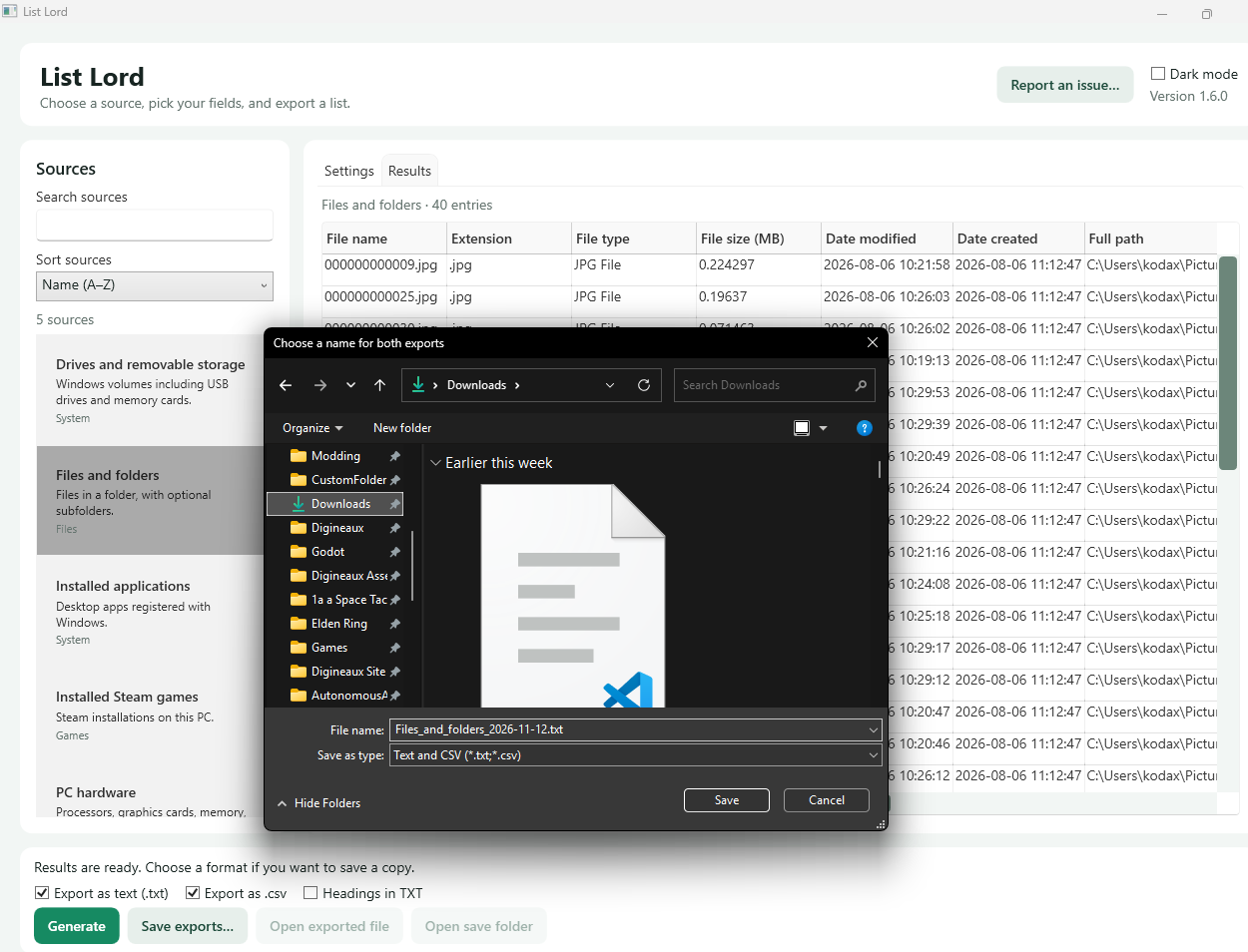
- Download and open List Lord. Extract the downloaded ZIP file and double-click
ListLord.exe. - Select Files and folders. Find and select this option in the Sources list.
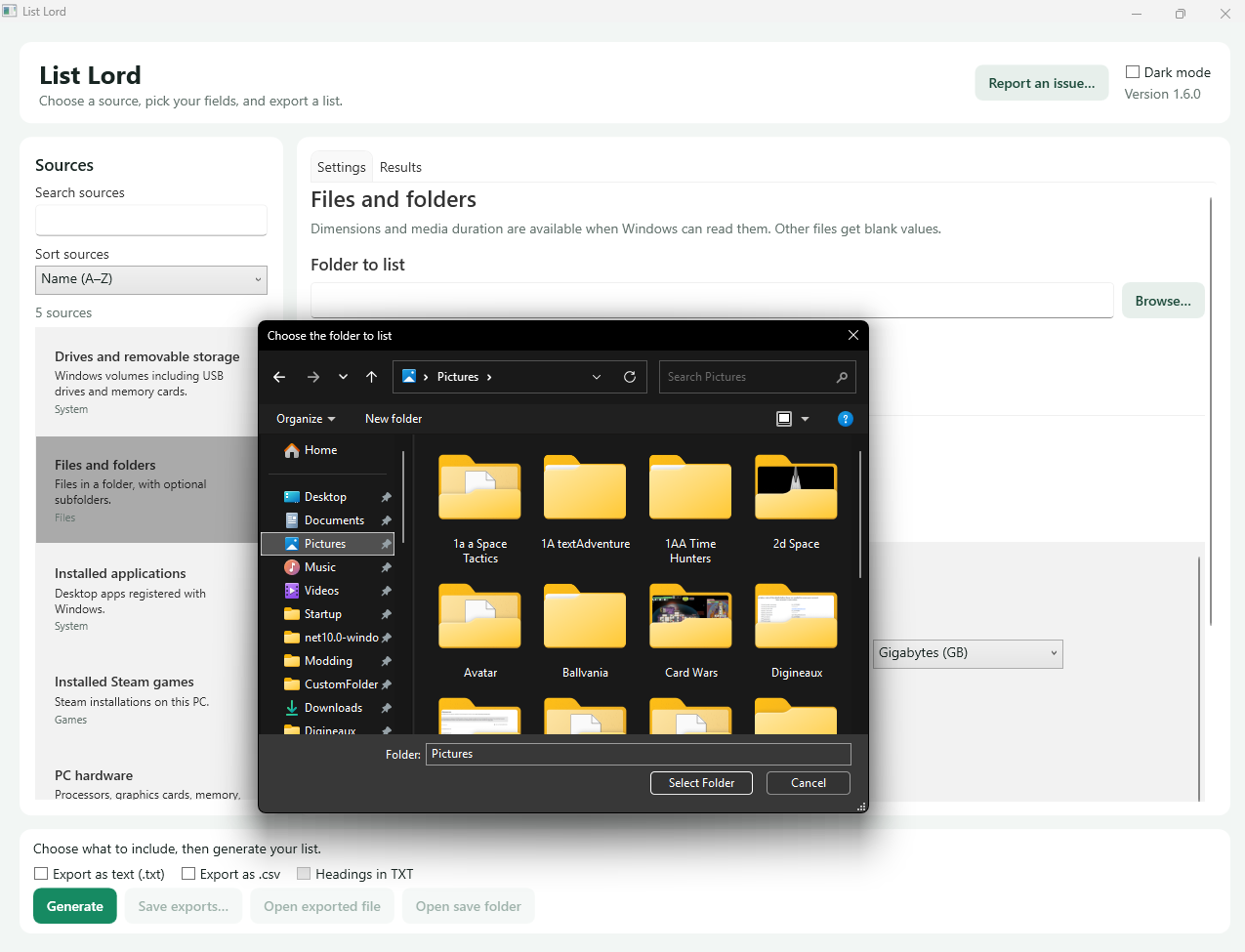
- Choose your folder. Browse to the directory you want to create a list of.
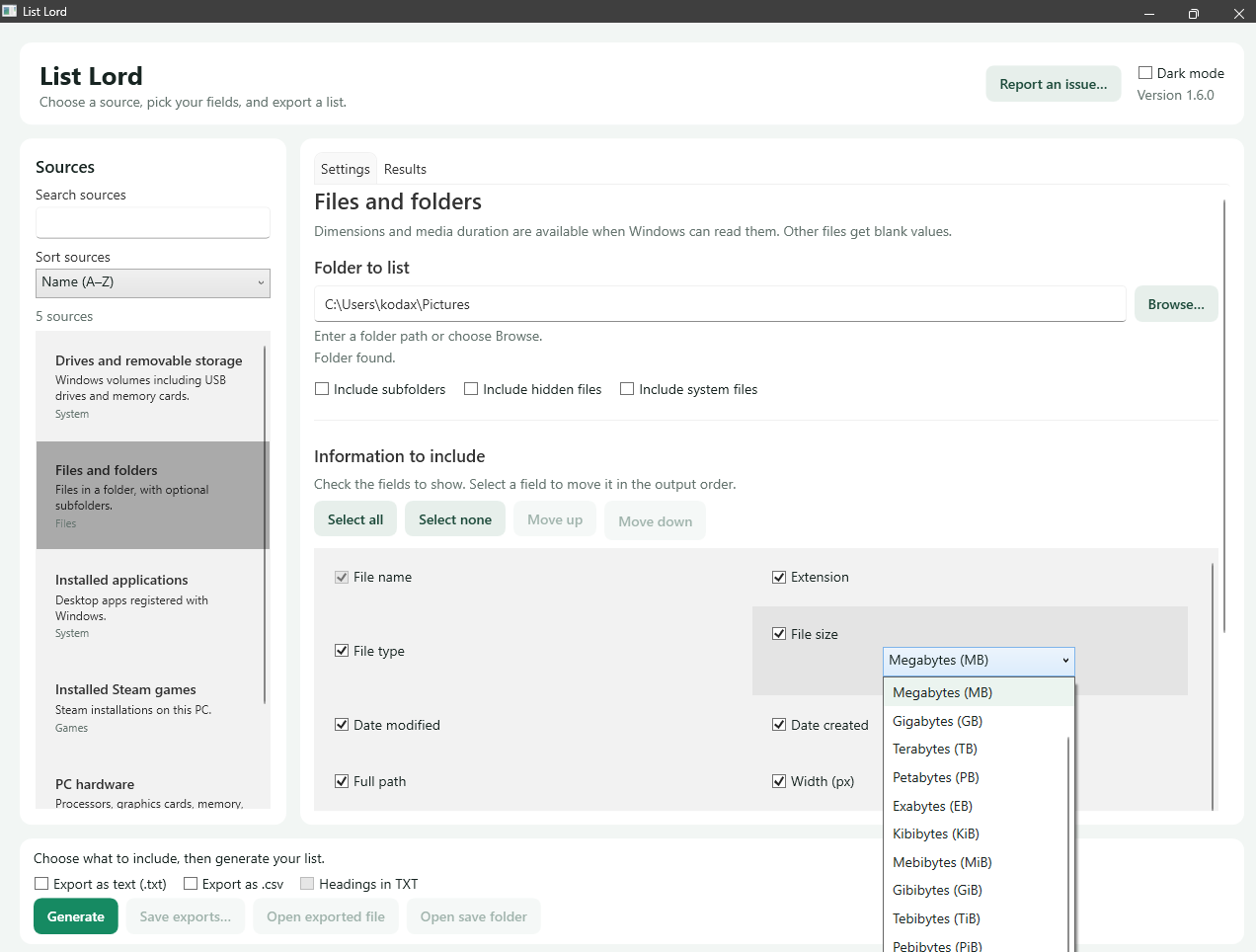
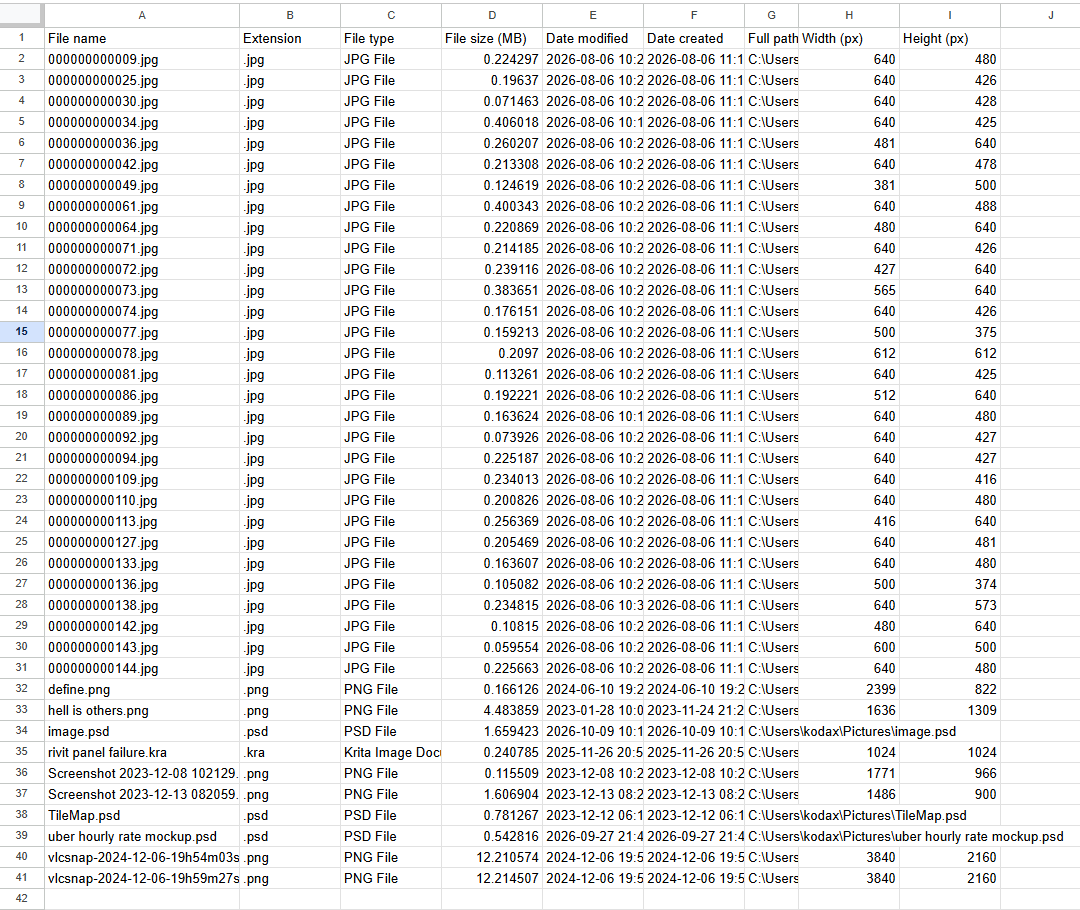
- Select the information to include. Choose which details you want in your list, such as file names, full paths, sizes, dates and available media information. You can also include subdirectories, hidden files and system files where needed.
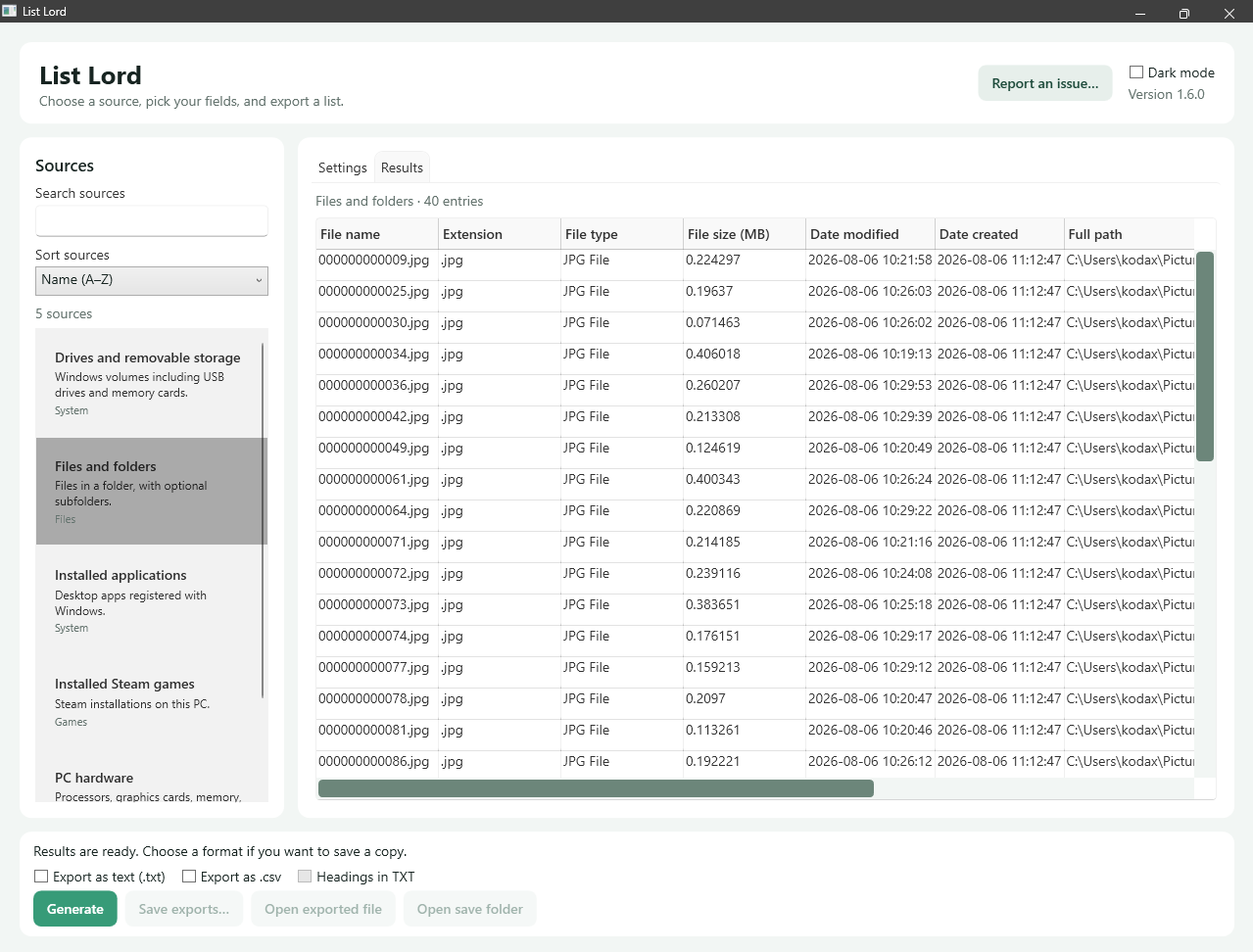
- Generate your list. Click Generate to build your list and preview the results in the Results section.
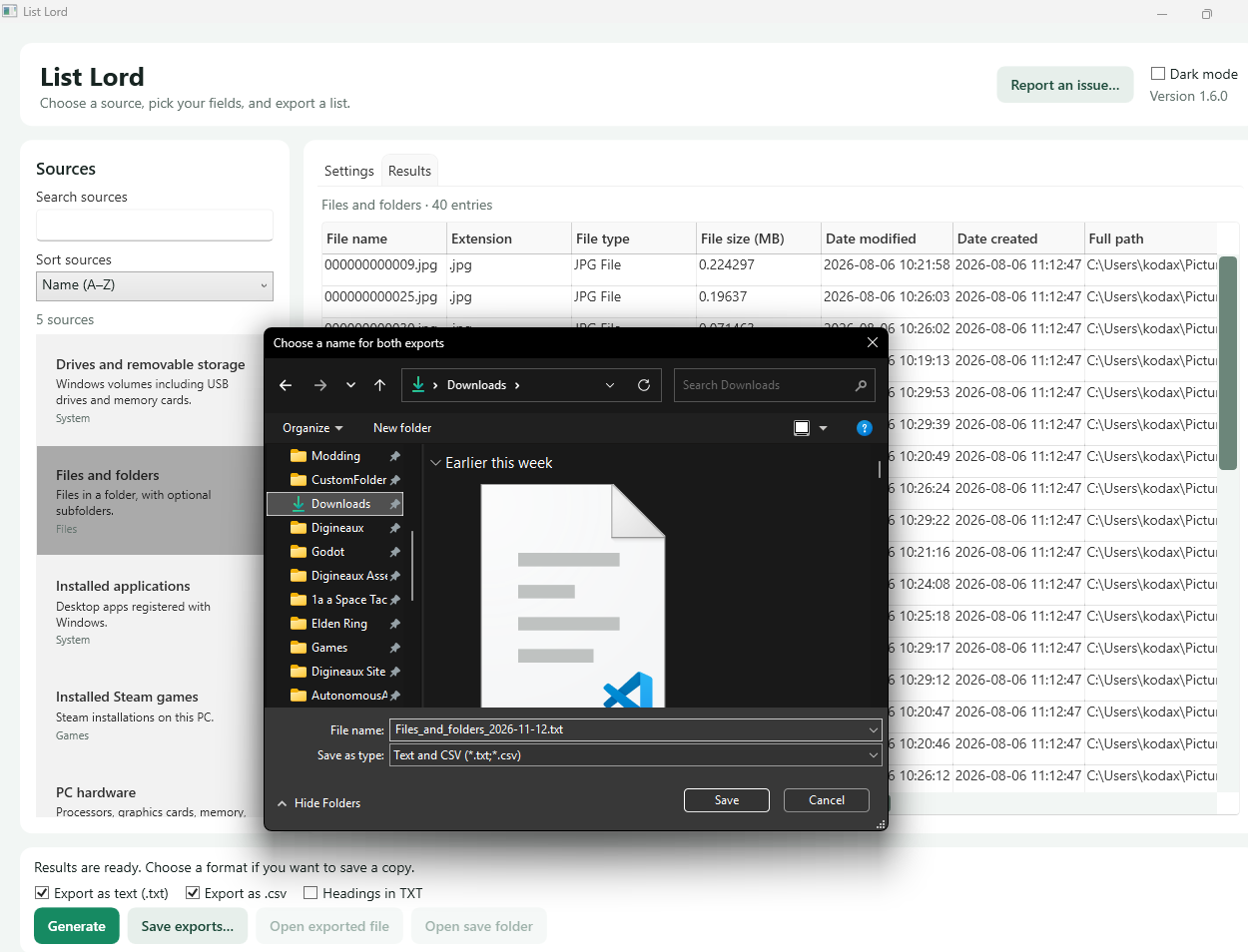
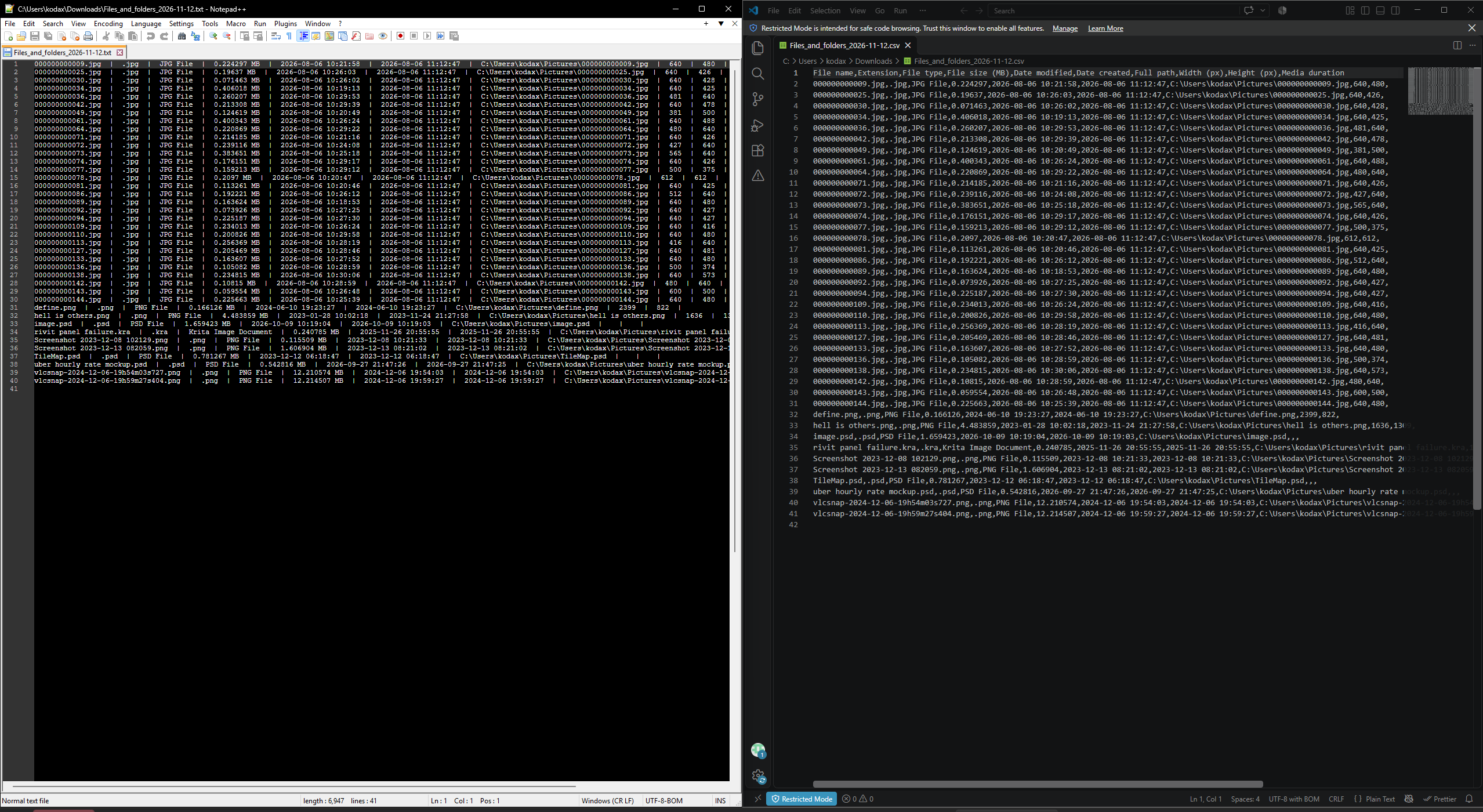
- Save your results. Select Export as text (.txt), Export as .csv, or both. Click Save exports and choose where to save your files.
That’s it! You can now open, copy, share or import your generated list into other applications.
More than just file lists
List Lord can also generate lists of other information on your PC, including:
- Installed Steam games: List locally installed games, their installation locations and sizes reported by Steam.
- PC hardware: Document your processor, graphics card, memory, motherboard and selected connected devices.
- Installed applications: List desktop applications registered with Windows, including version, publisher and available installation size information.
- Drives and removable storage: Document drive capacity, used and free space, and file system.
- Custom lists: Choose and reorder information fields, sort results and select size units to create lists suited to your needs.
List generation and exports are performed locally, so you don’t need an internet connection to use the application.
Which method should you use?
All three methods can generate useful file lists, but the best option depends on your experience and what you’re trying to accomplish.
- Command Prompt: Good for quick, basic lists if you’re comfortable entering commands.
- PowerShell: Best if you want more control over your output and are comfortable working with commands.
- List Lord: A convenient alternative if you prefer a graphical interface and don’t want to write commands. It also provides additional options for documenting other information about your PC.
If you only need a quick list and are comfortable using Windows commands, you probably don’t need anything else. However, if you’d rather select what you want through a straightforward interface, List Lord makes the process easier.
Leave a Reply