Description
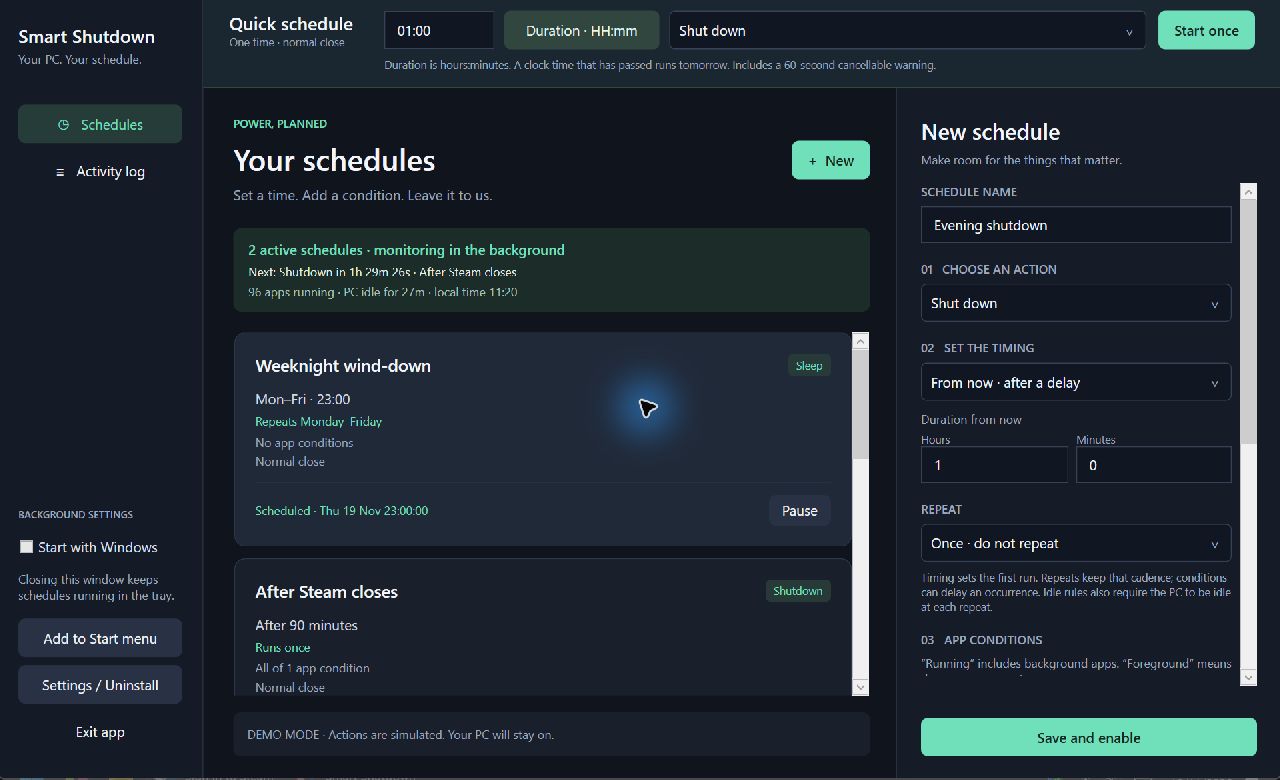
Set a timer now or save a schedule for later. Smart Shutdown Scheduler helps you choose when your Windows PC shuts down, restarts, signs out, sleeps, hibernates, or locks. Create a one-time timer, build a weekly routine, or let a schedule wait until your app conditions match.
Choose how your PC ends the day
- Six power actions. Schedule shutdown, restart, sign out, sleep, hibernate, or lock.
- Quick one-time timers. Enter a duration or a local 24-hour clock time, choose an action, and select Start once. Quick timers include a 60-second warning.
- Multiple saved schedules. Start after a delay, at a specific local date and time, or after a period without keyboard or mouse input.
- Flexible repeats. Run once or repeat hourly, daily, on weekdays, weekly, monthly, or at a custom interval in minutes.
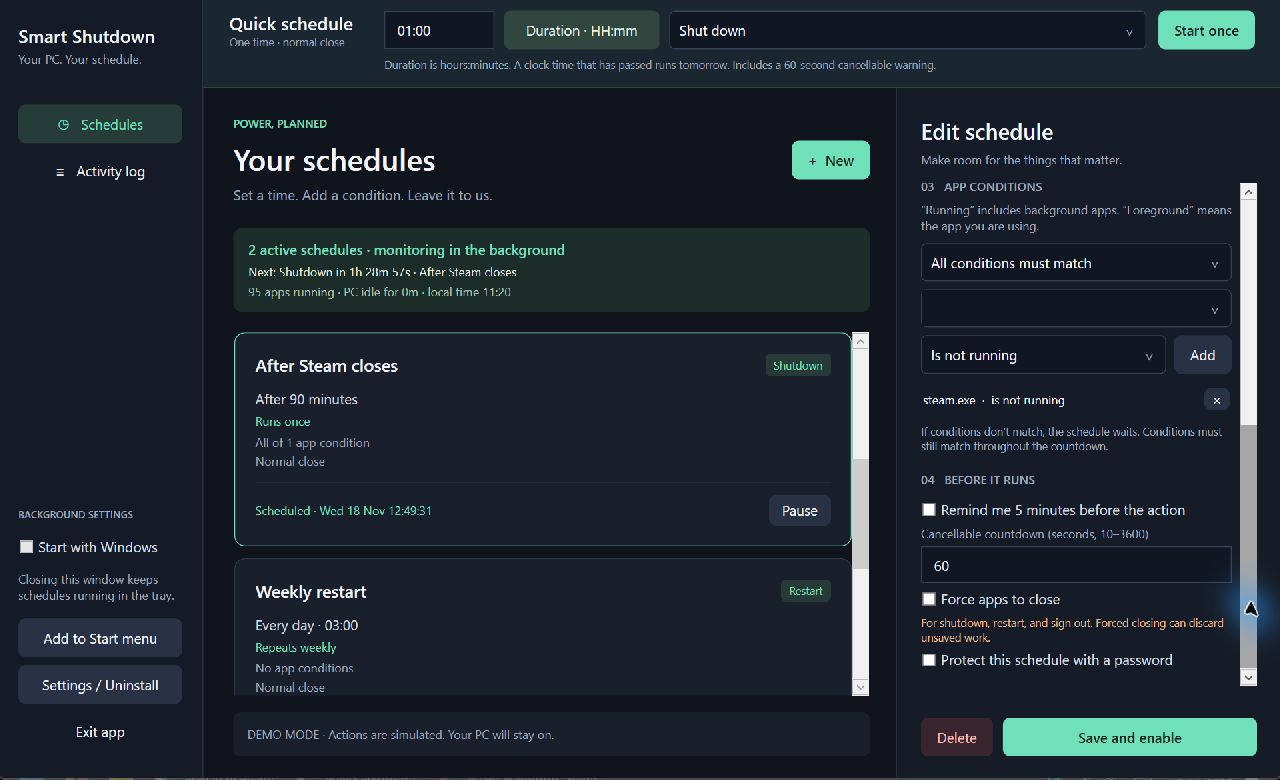
- App conditions. Check whether an executable is running, stopped, in the foreground, or out of the foreground. Combine rules and require all or any of them to match.
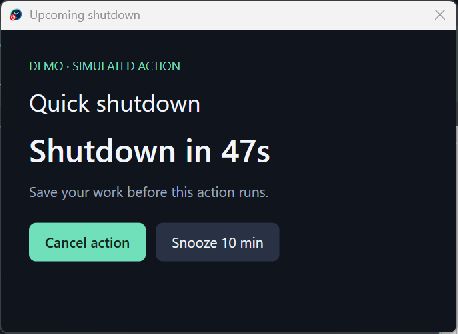
- A warning before it runs. Choose a countdown from 10 seconds to one hour, including a five-minute reminder option. Cancel the action or snooze it for 10 minutes.
- Optional password protection. Protect schedule controls, including edits, pausing, deletion, cancellation, and snoozing. Password protection applies to controls inside the app.
- Tray and startup controls. Close the main window to keep schedules running in the tray. Add a Start menu shortcut and optionally start the app when you sign in.
- Activity history. Review the latest 100 activity entries, with schedules and history saved locally on your PC.
- Demo mode. Try the scheduling workflow with simulated power actions.
- Let your schedule wait for an app. Add a rule such as steam.exe is not running to a shutdown schedule. When its time arrives, the schedule waits until Steam has closed. Conditions continue to be checked throughout the warning. If a condition stops matching, the countdown resets.
- Force apps to close for when Windows may let an open app block the action.
Everyday ways to use it
- A weekday wind-down. Schedule sleep at 11 pm from Monday to Friday, with a five-minute warning to finish what you are doing.
- An evening timer. Set a one-time shutdown for an hour from now using Quick schedule.
- After a gaming session. Choose a shutdown time and add a rule that waits for Steam to close.
- A regular restart. Save a weekly restart for a time when you expect to be away, while keeping the app running in your signed-in session.
- Lock after inactivity. Create an idle rule that locks the PC after your chosen period without keyboard or mouse input.
- Wait for a tool to exit. Use a not-running condition for a command-line task or utility that closes when finished. Match the executable that actually exits when the work is complete.
App rules check process and foreground state. For a download or render, use them when the relevant process closes on completion. Idle rules measure keyboard and mouse inactivity.
Installation and first use
- Download the Windows x64 ZIP supplied with your order.
- Right-click the ZIP in File Explorer and choose Extract All.
- Extract to a permanent folder you can write to, such as
Documents\Smart Shutdown. - Open
SmartShutdownScheduler.exefrom the extracted folder. The download includes the .NET desktop runtime. - For a quick timer, enter a duration as
hours:minutes, choose an action, and select Start once. Use Clock time for a local 24-hour time. - For a saved schedule, choose an action, timing, repeat, optional conditions, and warning. Select Save and enable.
- Optionally select Add to Start menu or Start with Windows. Keep the portable app in the same folder after enabling either integration.
To try simulated actions, launch the executable with the --demo option. Demo schedules are stored separately from your regular schedules.
Compatibility and requirements
| Recommended platform | Windows 11 on an Intel or AMD x64 PC. Real power-action and uninstall tests were completed on a Windows 11 PC. |
|---|---|
| Windows 10 | The app targets Windows 10 and 11. Windows 10 compatibility has not been independently tested for this release. Microsoft currently limits .NET 10 support on Windows 10 to eligible LTSC and Enterprise releases. |
| Architecture | This download is the Windows x64 build. Native ARM64, 32-bit Windows, macOS, and Linux builds are unavailable. |
| Download | Portable ZIP, approximately 70 MB to download. The extracted executable is approximately 76 MB. Allow extra space for runtime extraction and saved data. |
| Runtime and permissions | The .NET runtime is included. Normal extraction and use require a writable folder and standard user access. Power actions remain subject to Windows policy and account permissions. |
| Display | The app window requires at least 1200 × 820 logical pixels. Allow additional screen space for Windows controls and display scaling. |
| Sleep and hibernate | Availability depends on the PC hardware, firmware, and Windows power configuration. |
| Scheduling | Keep the app running in your signed-in Windows session, including in the tray. The PC must be awake for monitoring. The app cannot wake the PC. |
Microsoft maintains the current runtime and operating-system compatibility details. Read Microsoft’s Windows compatibility information.
This application is offer under the following license: https://digineaux.com/legalese/digineaux-software-license/
Pricing
The app is offered under a pay what you want scheme. Edit the amount above, before adding to cart. The minimum will increase as features are added and app stability is confirmed. Once purchased, you will have access to all future and past versions published. So get it now, while it’s cheaper.
Frequently asked questions
What happens when I close the window?
The app continues running in the Windows tray. Double-click its tray icon to reopen it. Use Exit app to stop the app and its monitoring.
What happens if the PC is off or the app is closed at the scheduled time?
When the app next opens, missed one-time schedules pause and recurring schedules advance to their next future occurrence. A missed action is never fired immediately at launch. Monitoring interruptions and sleep reset an in-progress warning so an eligible action receives a fresh countdown.
Do quick timers stay in my schedule list?
Quick timers appear in the list during the current session and can be paused or edited. Quick timers created in v1.2.1 are removed at the next launch. Use a regular saved schedule for a task you want to keep.
Where are my settings stored?
Schedules, password hashes, and recent activity are saved in %LOCALAPPDATA%\SmartShutdownScheduler\schedules.json. Demo data is kept alongside the demo executable in its own folder.
How do I uninstall it?
Open Settings / Uninstall. Choose whether to keep your schedules and history, then confirm. Kept schedules are paused. The app removes this copy’s binaries and its Start menu and startup integrations. Protected schedules require their passwords before uninstall can proceed.
What does the activity log confirm?
It records the action requested by the app. Windows, other applications, and hardware determine whether that transition completes.
Is the download digitally signed?
The v1.2.1 executable is currently unsigned, so Windows may display publisher or reputation prompts. All this means is I didn’t pay Microsoft a fee.
Reviews
There are no reviews yet.